
Convert an OBJ model to OX2Z for HP Carbon
Turn a rough OBJ model with inclusions into an OX2Z file for planning in HP Carbon.
You get an OX2Z file for HP Carbon from an OBJ model of a rough diamond with its inclusions, either straight from the conversion or after you adjust the inclusions on Cutwise.
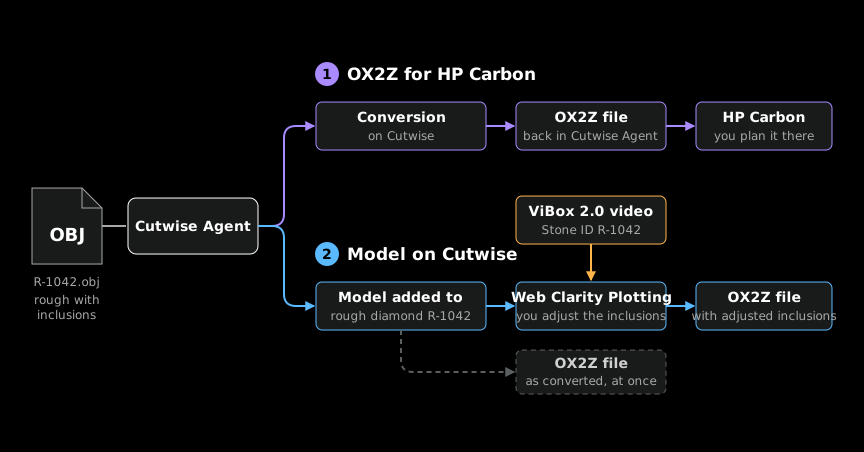
1OX2Z for HP Carbon
You only need the file to plan the rough diamond in HP Carbon.
- Start with
- Rough OBJ model with inclusions
- Result
- The OX2Z file in Cutwise Agent
- Price
- From €0.10, by mass
2Model on Cutwise
You want to adjust the inclusions before HP Carbon.
- Start with
- Rough OBJ model with inclusions
- ViBox 2.0 video of the rough diamond
- Result
- The model on the rough diamond page
- The OX2Z file as converted, in Cutwise Agent
- The OX2Z file you export after adjusting
- Price
- From €0.10, by mass
Before you start
- Cutwise Agent is installed, and you are signed in to it with your Cutwise account.
- You have one OBJ file per rough diamond, with the model and its inclusions in the same file.
- For route 2, the rough diamond has a ViBox 2.0 video on Cutwise. Web Clarity Plotting needs it.
- For route 2, the rough diamond has no 3D model yet. Cutwise refuses an OBJ file for a rough diamond that already has one.
Turn the service on in Cutwise Agent
-
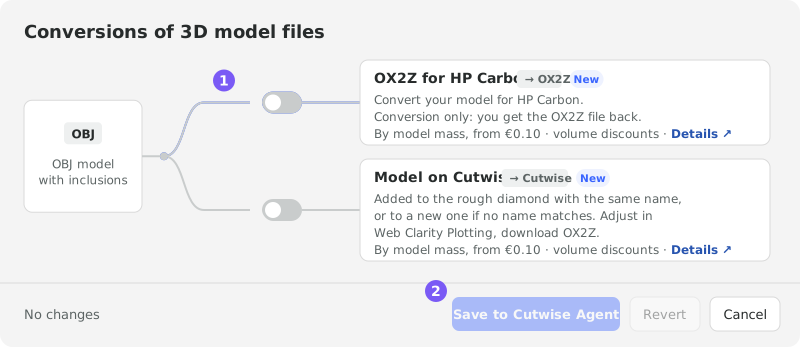
Open the Cutwise Agent settings and go to the Upload Rules tab.
-
Click Choose Services….
TODO Agent Screenshot
-
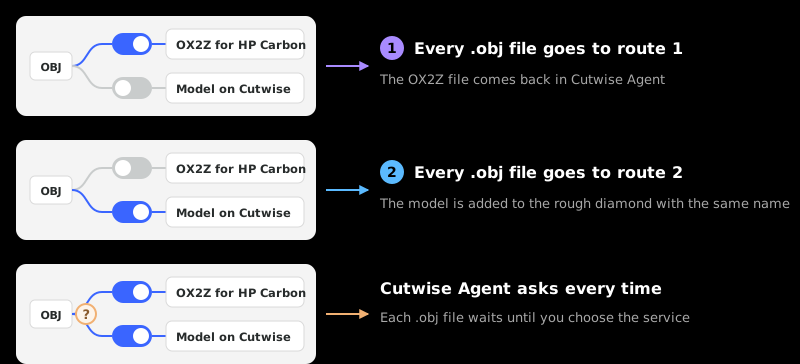
In Conversions of 3D model files, find the OBJ input. Turn on OX2Z for HP Carbon for route 1, or Model on Cutwise for route 2, and leave the other one off.
-
Click Save to Cutwise Agent.
Route 1: get the OX2Z file back

-
Turn on OX2Z for HP Carbon, as in Turn the service on.
-
Add your
.objfiles to Cutwise Agent. -
Wait for each row to reach Done.
TODO Agent Screenshot
-
Click the link icon in the finished row to download the OX2Z file. The link works for 7 days.
-
Open the OX2Z file in HP Carbon.
Route 2: adjust the inclusions on Cutwise
-
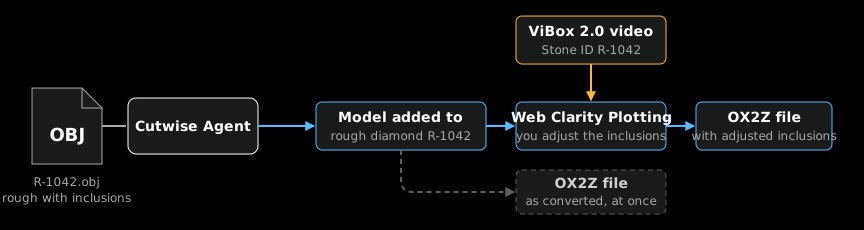
Turn on Model on Cutwise, as in Turn the service on.
-
Name each file after the
Stone IDof the rough diamond's ViBox 2.0 video:R-1042.objforR-1042. Cutwise adds the model to that rough diamond. If no rough diamond has thatStone ID, Cutwise creates a new one. -
Add your
.objfiles to Cutwise Agent. -
Wait for Done. The model is now on the rough diamond page. The finished row also links to an OX2Z file made straight from your OBJ, before you adjust anything.
-
Open the rough diamond in Web Clarity Plotting. The Web Clarity Plotting demo shows how it works.
-
Fix, remove or add inclusions, and mark the type of each one. The Web Clarity Plotting guide shows how.
-
Export the result to OX2Z with the green download button in the Web Clarity Plotting toolbar.

-
Open the exported OX2Z file in HP Carbon.
Next
- OBJ to OX2Z prices, with the volume discounts
- Mark inclusions in Web Clarity Plotting
- 3D model import prices