 Documentation
Back Office
Open the back office and find, view, share, export and delete the diamonds you published to Cutwise.
In the back office you manage the diamonds, rough diamonds, gems and jewelry that your company added to Cutwise.
Before you start
- Your Cutwise account can manage your company's stock. If it cannot, contact us.
- Edit needs the right to edit diamonds, and Download needs the right to download archives. If you do not see these actions, contact us.
Open the back office
- Sign in to cutwise.com.
-
Open your account menu and choose a stock page:
- My Natural Diamonds: Colorless, Fancy Color, Rough.
- Other: Jewelry, Gems.
- Lab-grown accounts see a Lab-grown diamonds group with Colorless, Fancy Color and Rough.
For example, the page for colorless natural diamonds is https://cutwise.com/catalog/diamond-colorless/edit.
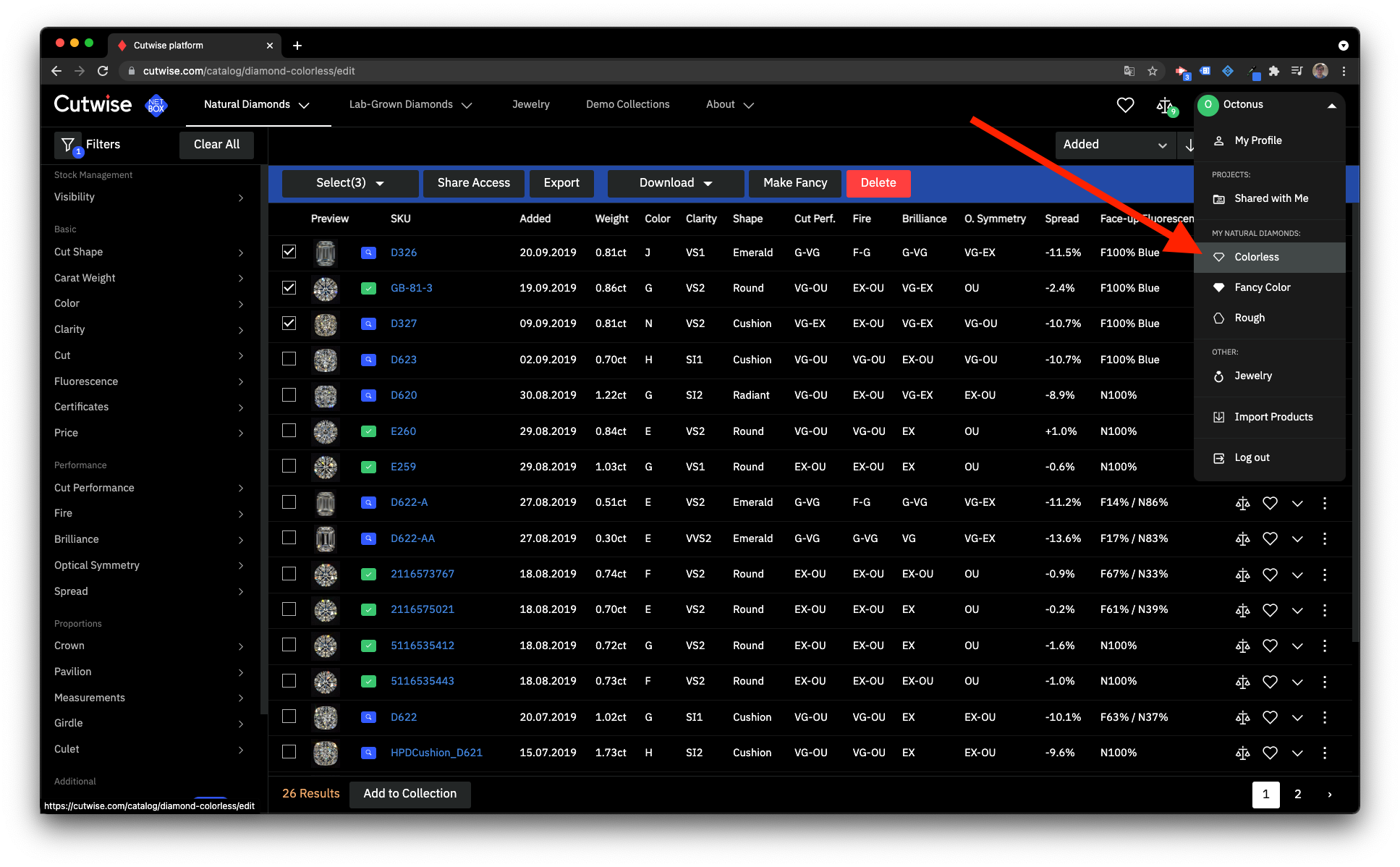
Check the result
The page lists all the diamonds of this type that your company added, sorted by the date they were added to Cutwise. The colorless diamond page shows colorless diamonds only.
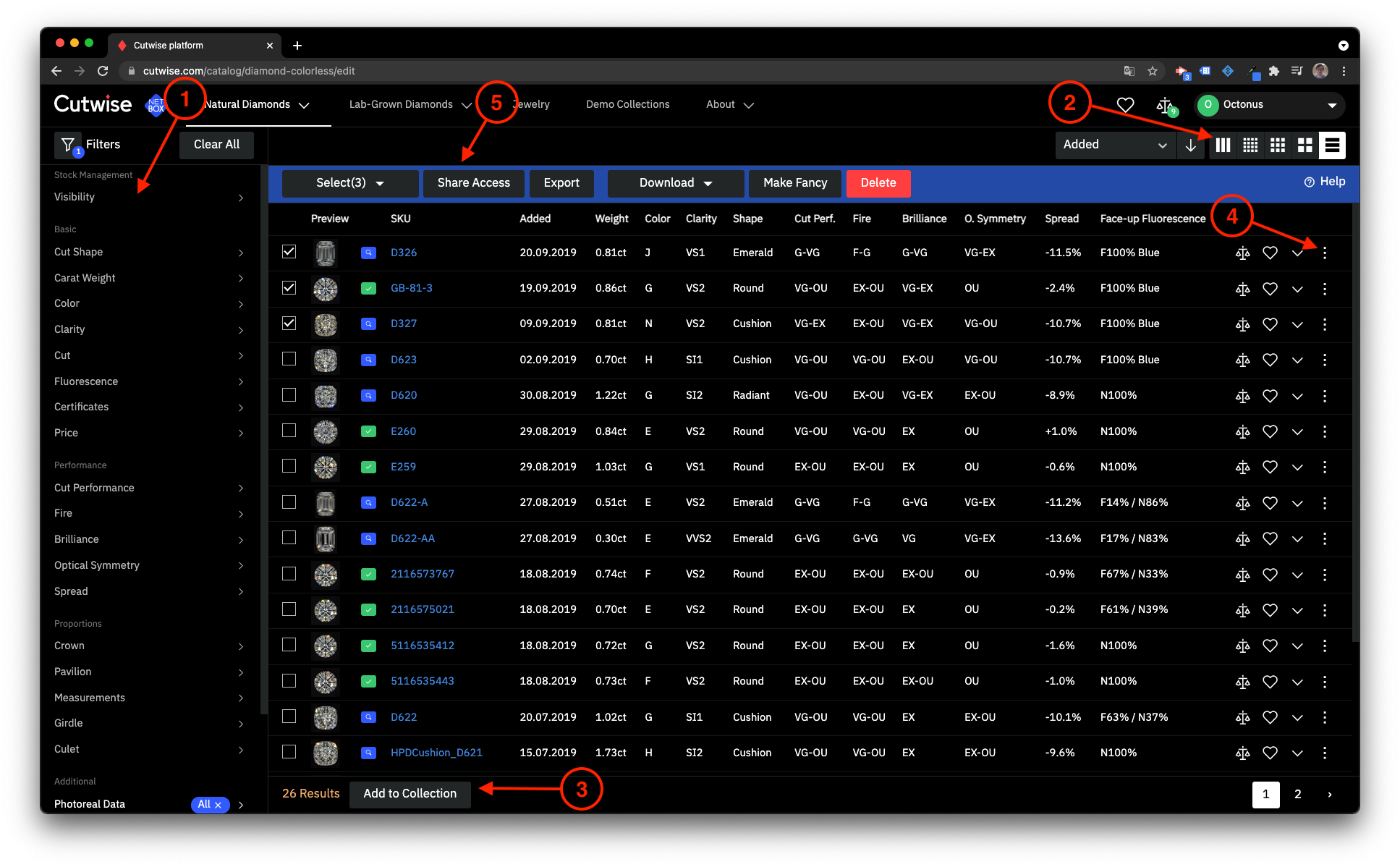
Find diamonds with filters
The filters work the same way as in the shared catalog. The back office also has a Visibility filter, which finds diamonds by their access status.
Change the view
For example, switch the list to tiles or to the combo table view.
Create a collection quickly
Note
You can add up to 350 diamonds to a collection at once.
Manage one diamond
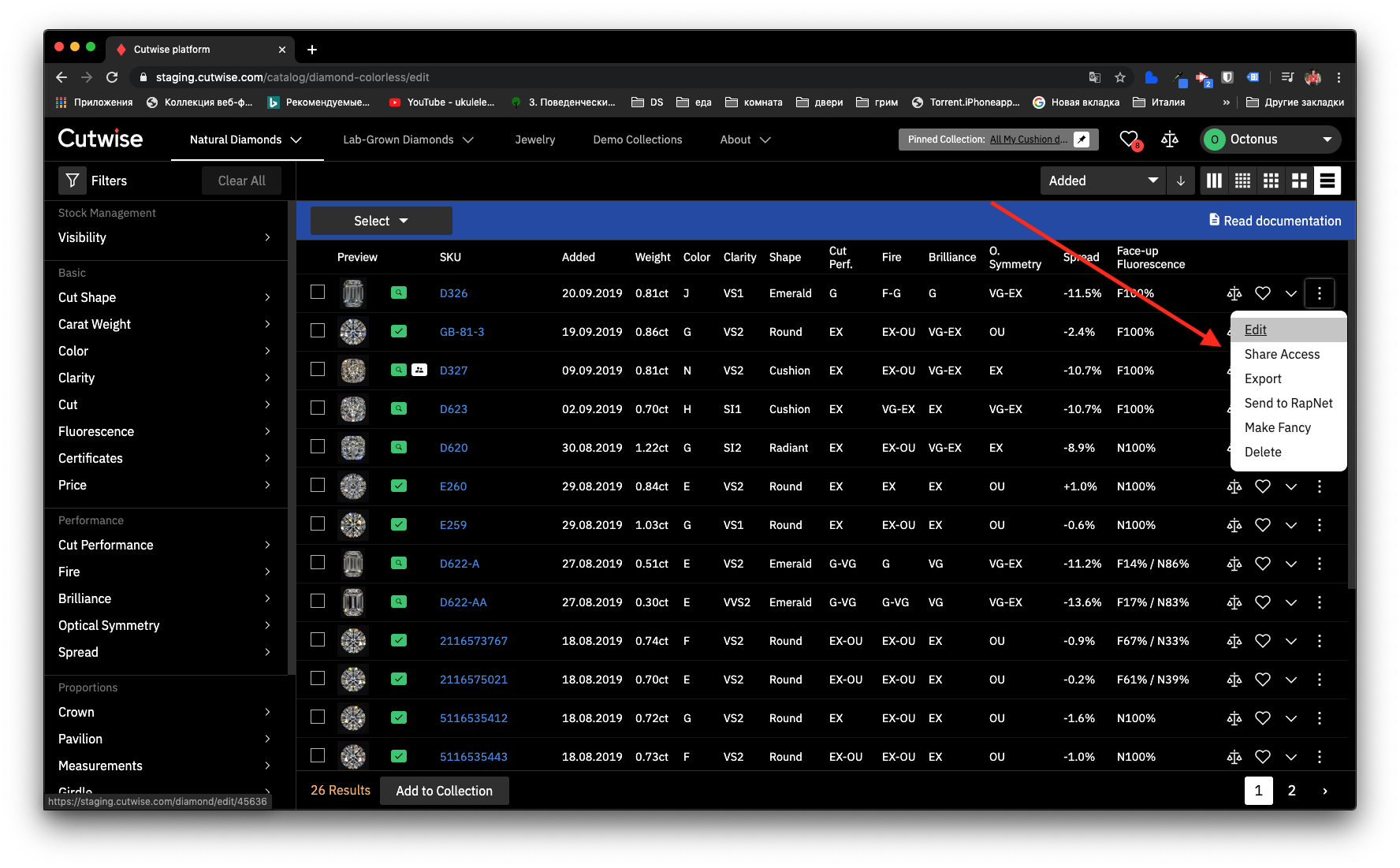
Open the context menu next to the diamond. The menu has these actions:
- Edit opens the editing page.
- Modify Global Access sets who can see the diamond. See Share Access.
- Share Private Access opens the diamond to the people you choose.
- Export downloads the diamond data as an Excel (.xlsx) file.
- Send to RapNet links the diamond to its RapNet listing. The menu shows it only for natural diamonds scanned in Cutwise. See Publish to RapNet.
- Make Fancy moves a colorless diamond to the fancy color list. For a fancy color diamond, the item is Make Colorless.
- Delete deletes the diamond.
Manage several diamonds at once
- Select the diamonds. Tick their checkboxes, or open the Select menu:
- All selects every diamond that matches the filters, on all pages.
- None clears the selection.
- On this page selects the diamonds on the current page.
- Use the bulk panel:
- Share Access → Global or Private changes access for all selected diamonds.
- Export downloads the data of all selected diamonds as an Excel (.xlsx) file.
- Download → Zip Archive downloads the media files of the selected diamonds as one archive.
- Make Fancy moves the selected diamonds to the fancy color list. On a fancy color page, the panel shows Make Colorless instead.
- Delete deletes all selected diamonds.
Note
When you export more than 1000 diamonds, Cutwise prepares the file in the background and opens the Tasks page. Download the file there when it is ready.
Next
- Share Access: decide who sees your diamonds.
- Import from a File: add many diamonds from a spreadsheet.
- Publish to RapNet: show Cutwise media on RapNet.