 Documentation
Share Access
Decide who sees your diamonds and projects, and how much of their cut data.
After these steps, your diamonds or projects are visible only to the people you choose, with the amount of cut data you choose.
Before you start
- You can set access for these items:
- Diamonds: natural, lab-grown and photoreal diamonds, rough diamonds and jewelry.
- Projects: HP Carbon projects and their solutions, and photoreal diamonds and scans in projects.
- To change access from a collection, you need the editing permission for the diamonds in it. The collection shows the access controls only for the diamonds your company owns.
Set global access
-
Open the access controls. They are at the top of the diamond page or the project page.
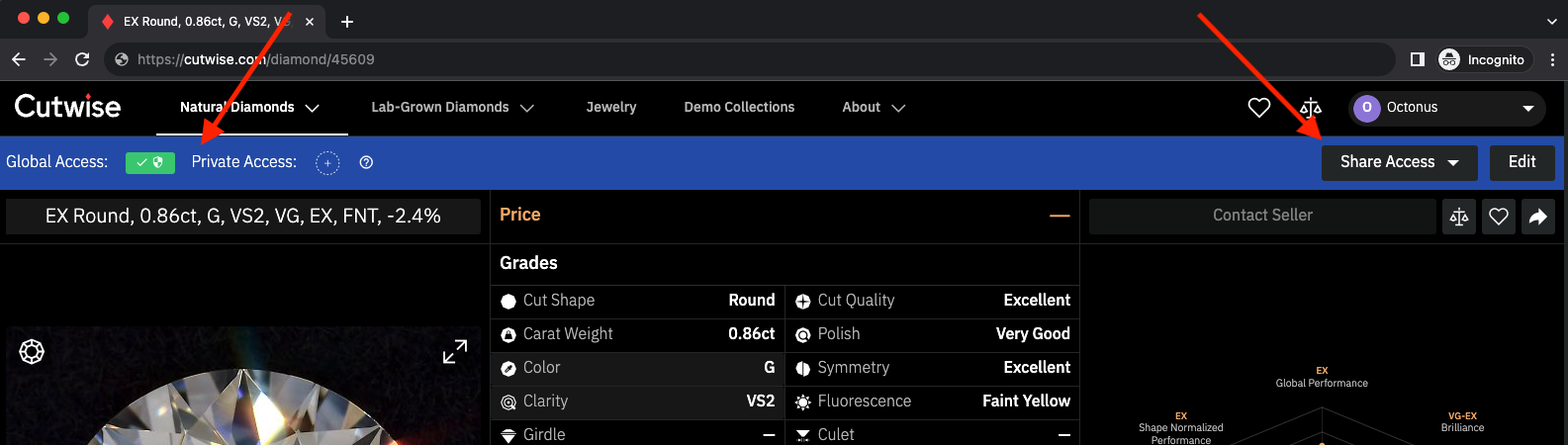
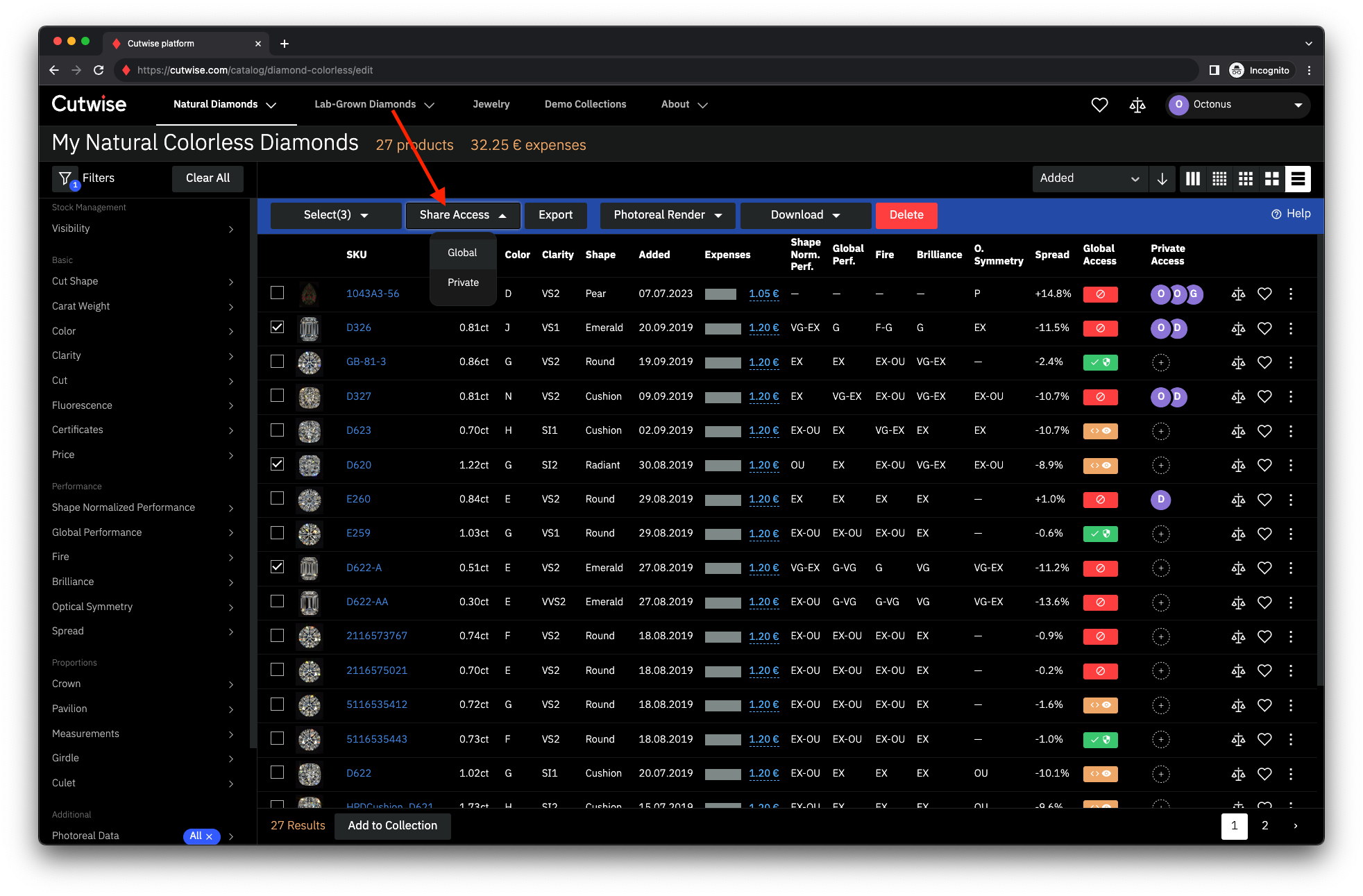
To change several diamonds or projects at once, select them on the back office page. For one diamond in the back office, open its context menu and click Modify Global Access.
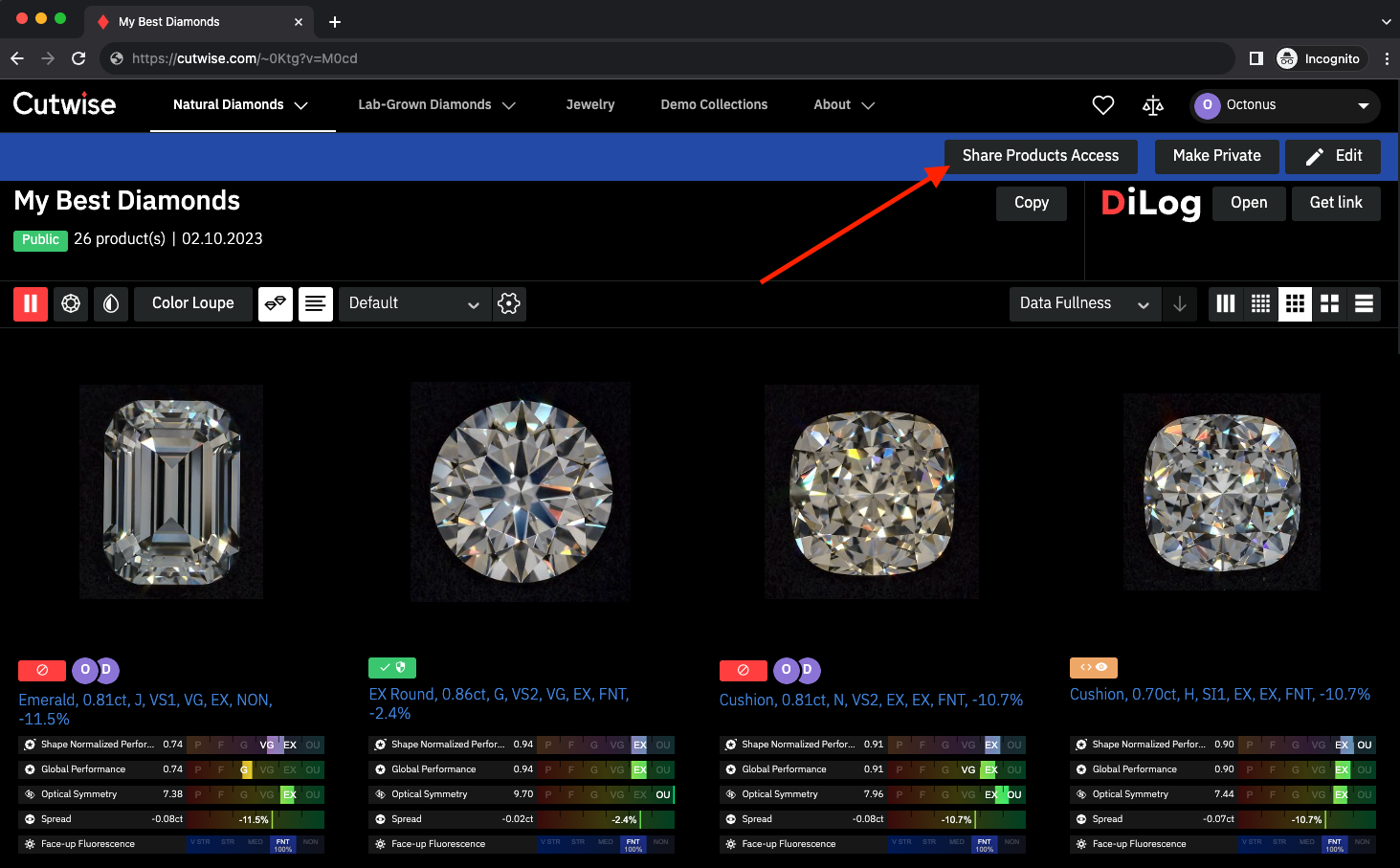
To change the diamonds of a collection, open the collection and click Share Products Access.
-
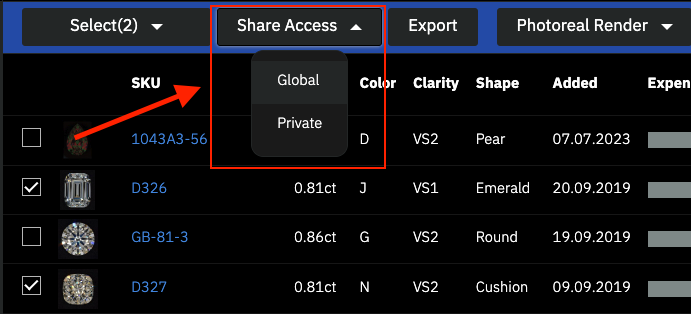
Click Share Access and select Global.
-
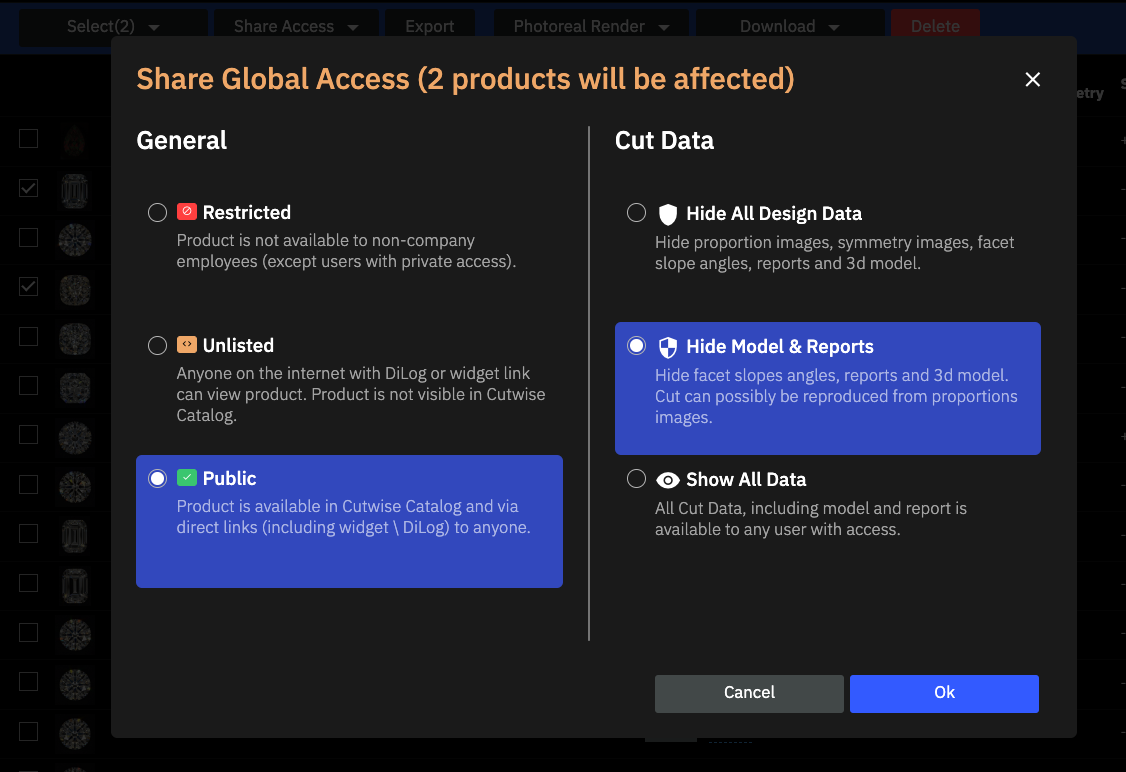
In the General section, select who can see the item. A diamond has three statuses: Restricted, Unlisted and Public. A project has two: Restricted and Public. The statuses are described under Reference below.
-
For a diamond, select in the Cut Data section how much cut data people can see. The statuses are described under Reference below.
-
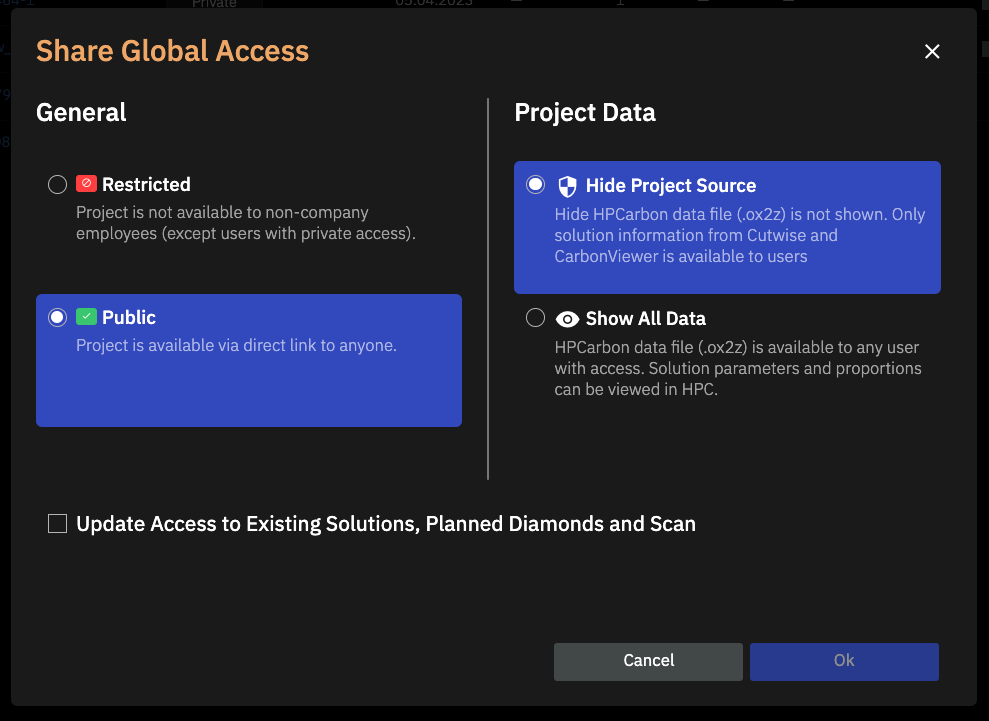
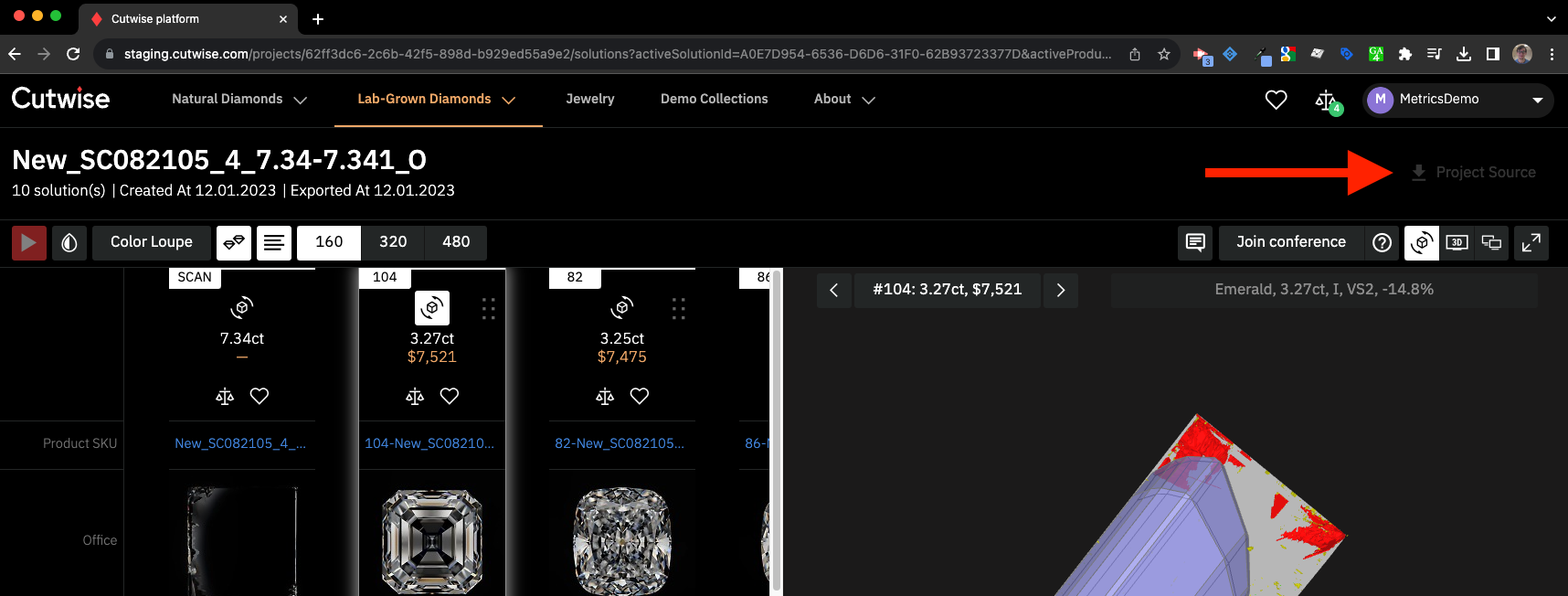
For an HP Carbon project, select in the Project Data section how much project data people can see: Hide Project Source, Hide Project Source And Solutions Design Data, Show All Data or Show All Project And Solutions Data. Hide Project Source hides the HP Carbon source file (ox2z).
-
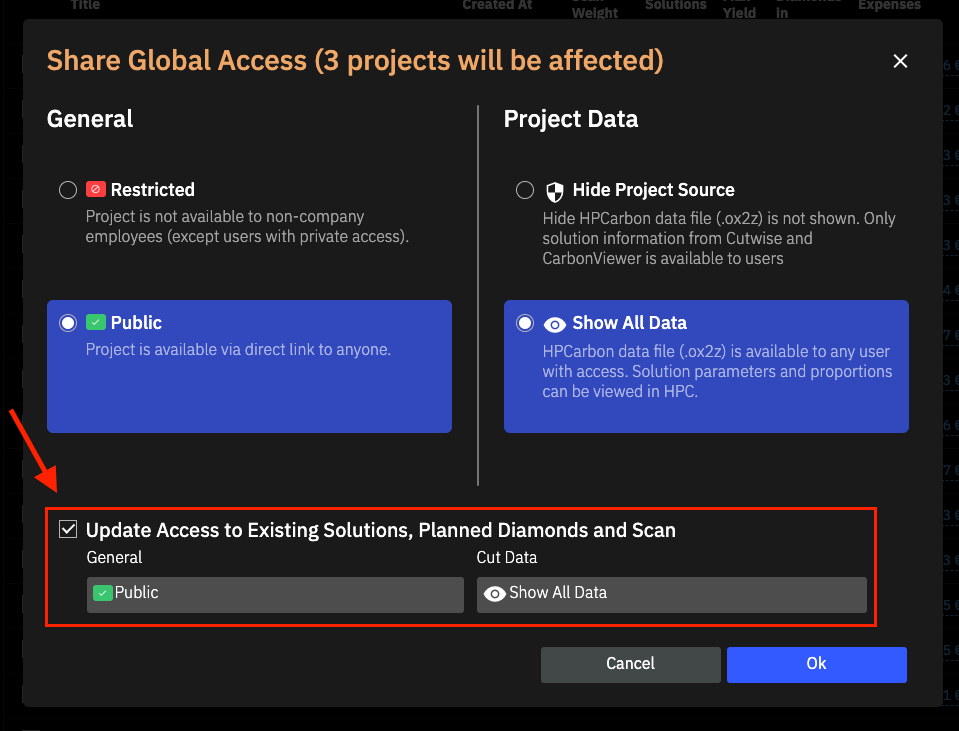
For a project, optionally select Update Access to Existing Solutions, Planned Diamonds and Scan. The checkbox is off by default, and then only the project itself changes.
You can set access for several projects at the same time.
Give private access
Private access opens a diamond or a project to the people you name by e-mail. For example, set the diamond to Restricted and then give access only to some people.
-
Click Share Access and select Private. In the back office, open the context menu of the diamond and click Share Private Access.
-
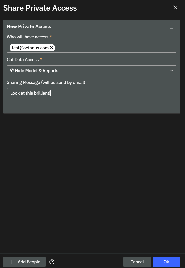
Enter the e-mail addresses of the people. If someone has no Cutwise account yet, Cutwise creates one. You can give private access to a list of diamonds or projects at once.
-
Optionally, set a Cut Data status for each person.
-
Optionally, write a Sharing Message. Cutwise sends it to the people by e-mail.
-
For a project, optionally choose an option under Set existing solutions access to to give the same access to the existing solutions.
Check the result
The Access window of a project shows the access of its scans, diamonds and solutions. They have the access of the project only if you selected Update Access to Existing Solutions, Planned Diamonds and Scan.
Reference
General access
| Status | Who can see the diamond |
|---|---|
 Restricted Restricted |
Nobody, except the employees of the publishing company and the people with private access. |
 Unlisted Unlisted |
Anyone with a direct link (DiLog or Cutwise Widget). The diamond is not in the cutwise.com catalog. |
 Public Public |
Anyone, in the cutwise.com search and with direct links, including the Cutwise Widget and DiLog. |
A project has only two statuses. Restricted keeps the project inside your company, except the people with private access. Public opens the project to anyone with the link. Projects never appear in the catalog.
Cut Data statuses
Cut data is the data that can help someone recreate the cut design of a diamond: 3D models, reports, and report images with facet angles.
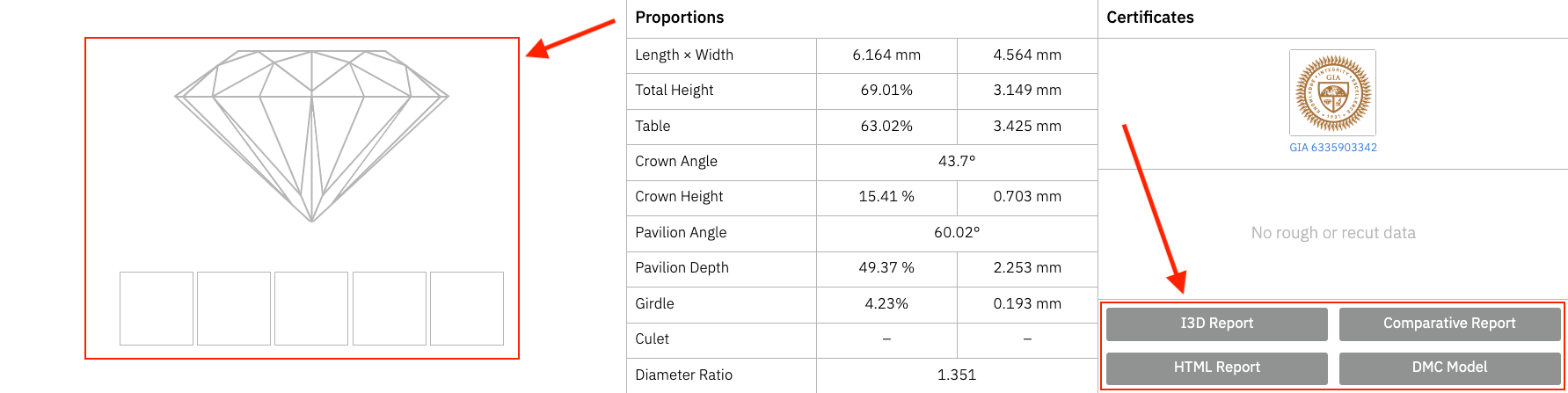
 Hide All Design Data hides proportion images, symmetry images, facet slope angles, reports and the 3D model.
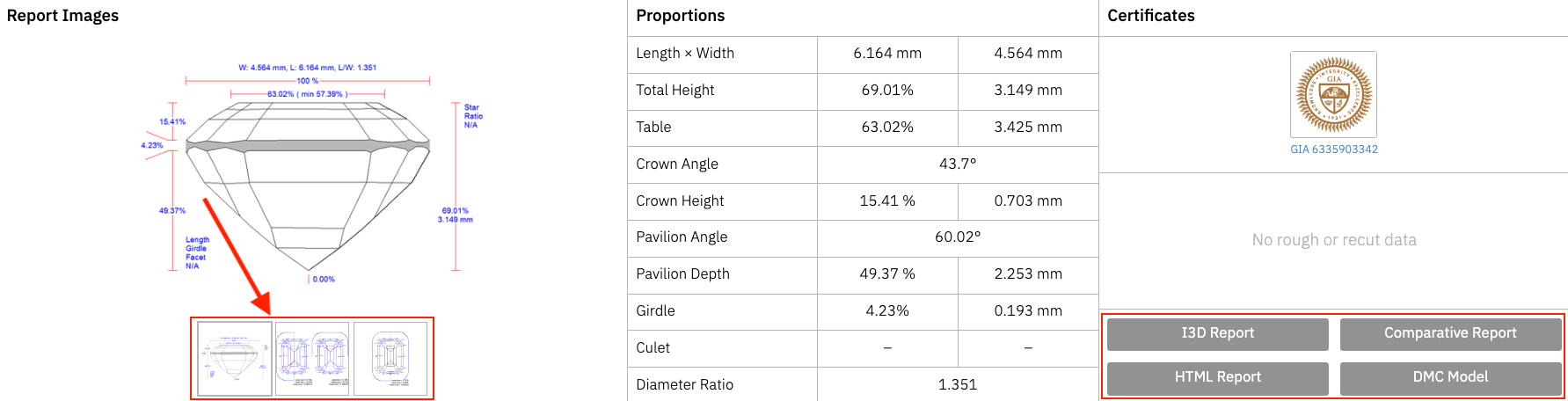
 Hide Model & Reports hides facet slope angles, reports and the 3D model. Someone may still reproduce the cut from the proportion images.
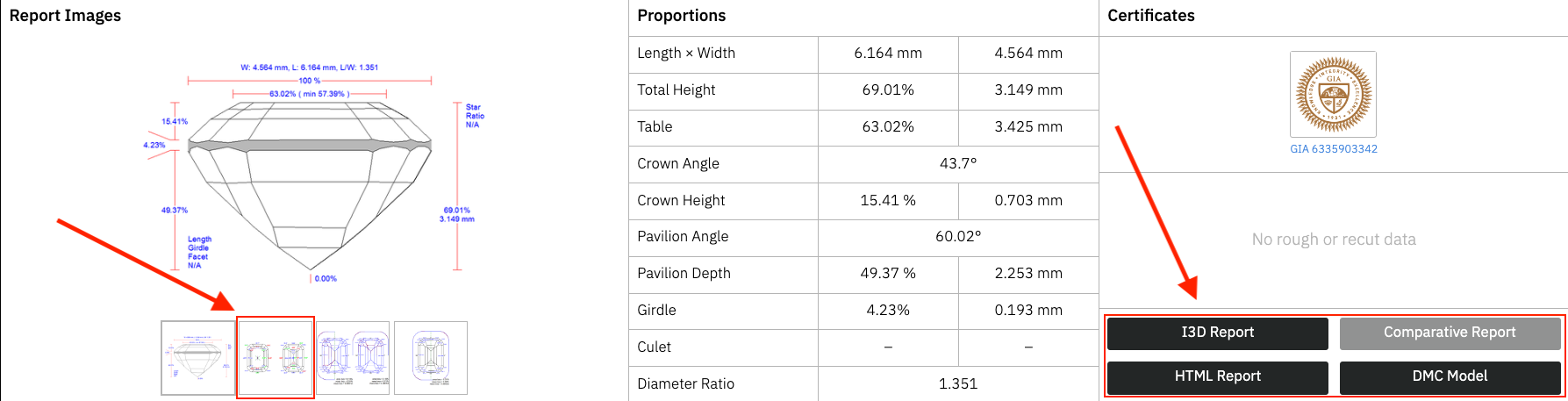
 Show All Data shows all cut data, including the model and the reports, to any user with access.
Next
- Cutwise Widget: show an Unlisted or Public diamond on your own website.