
Creating a Collection
Put new diamonds into a public collection, alone or next to MSS reference diamonds.
After these steps, you have a public collection with the new diamonds of a client. The same steps work for rough diamonds and jewelry.
Before you start
- You have an account on cutwise.com.
- You know the client prefix in the SKU of the new diamonds, for example
SRK.
Create a collection with new diamonds
-
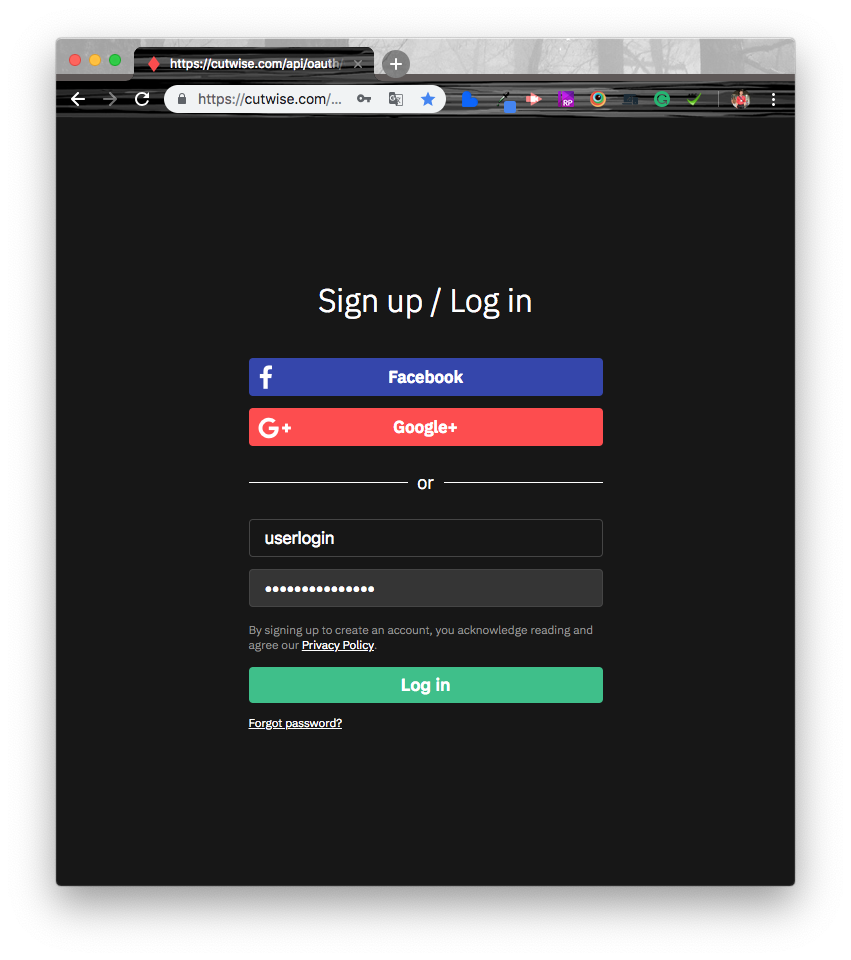
Sign in to cutwise.com.
-
Go to the main page.
-
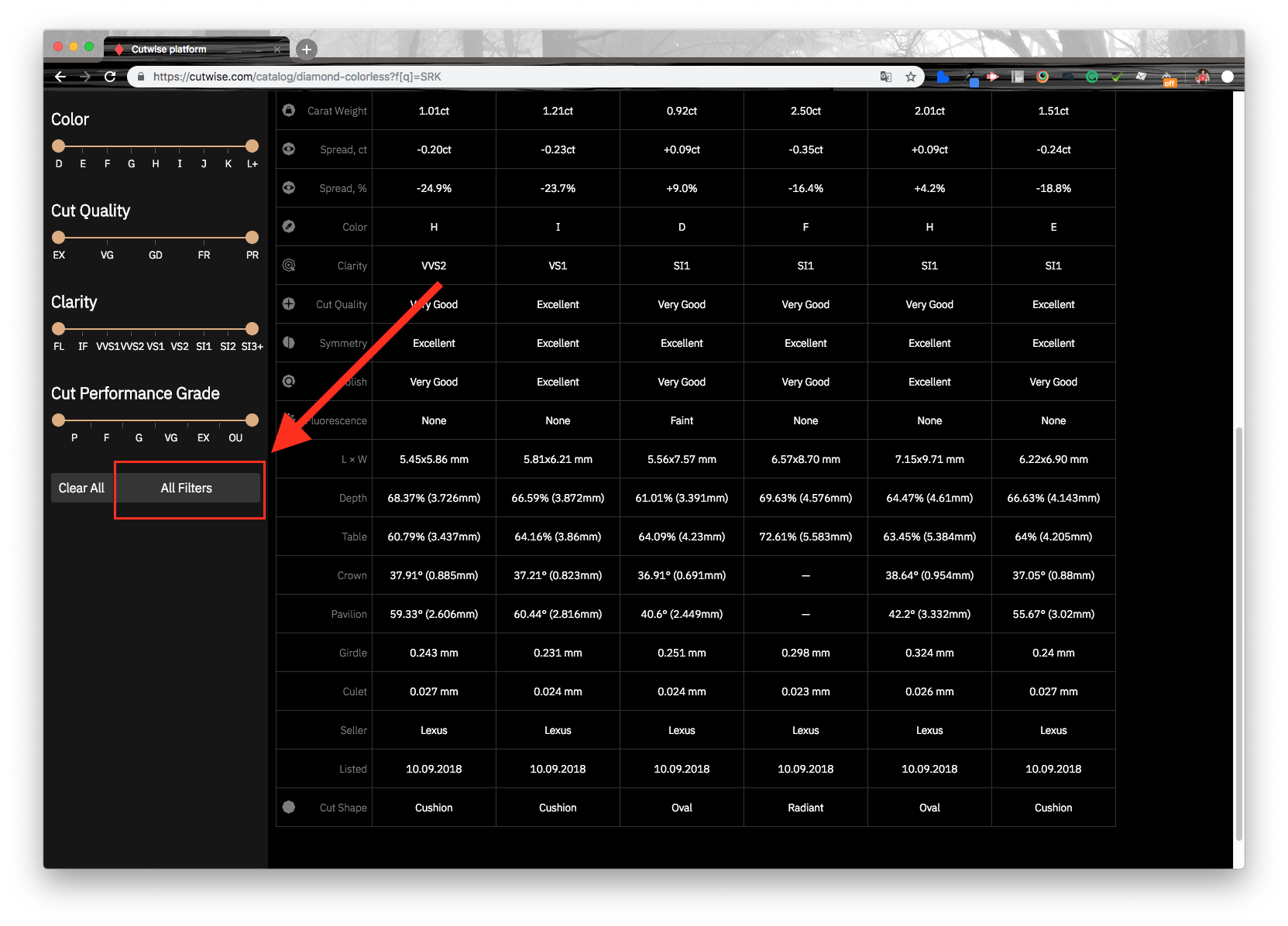
Click All filters.
-
Enter the client prefix (for example
SRK) in the Products SKU filter and click Apply.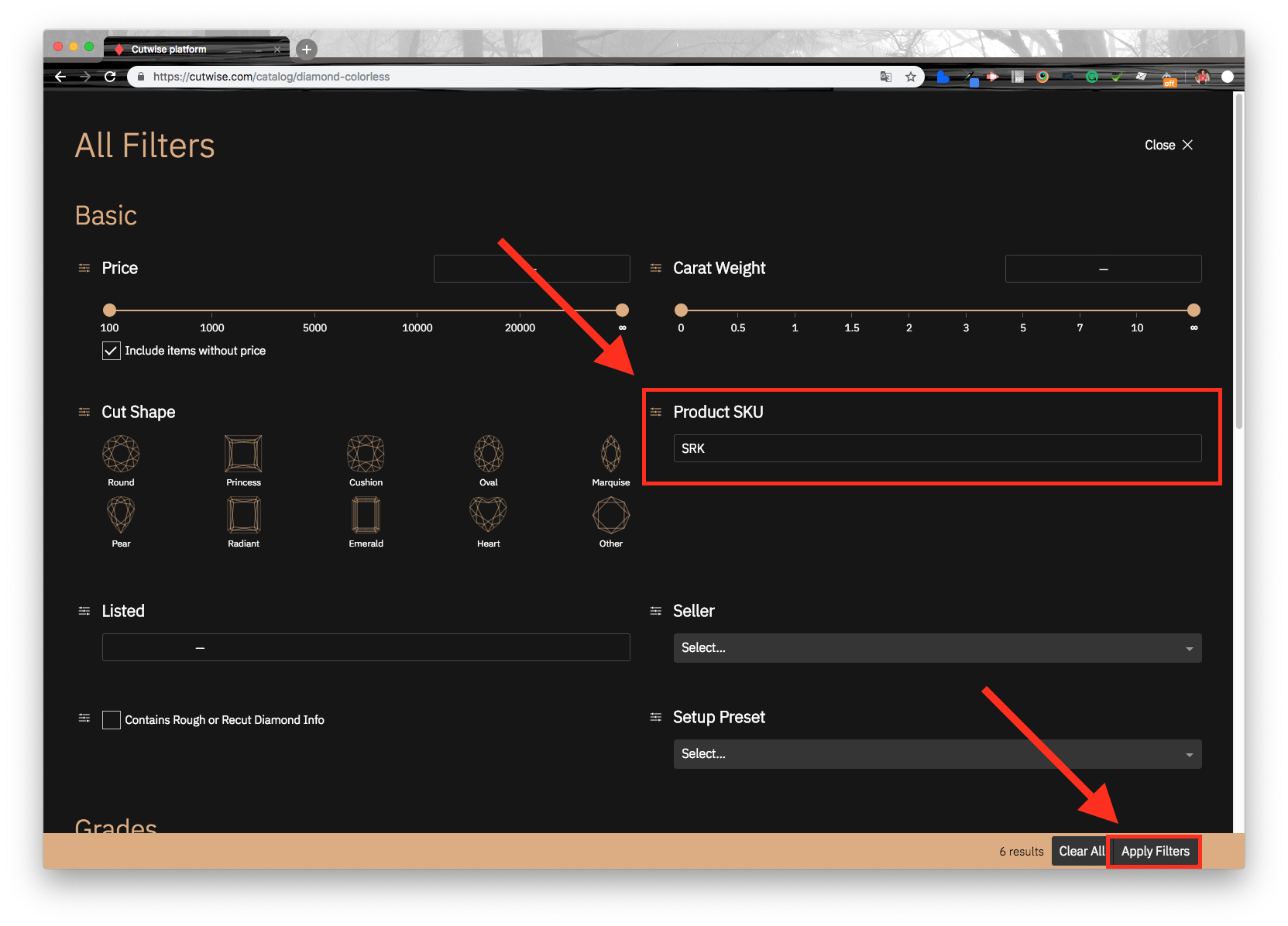
-
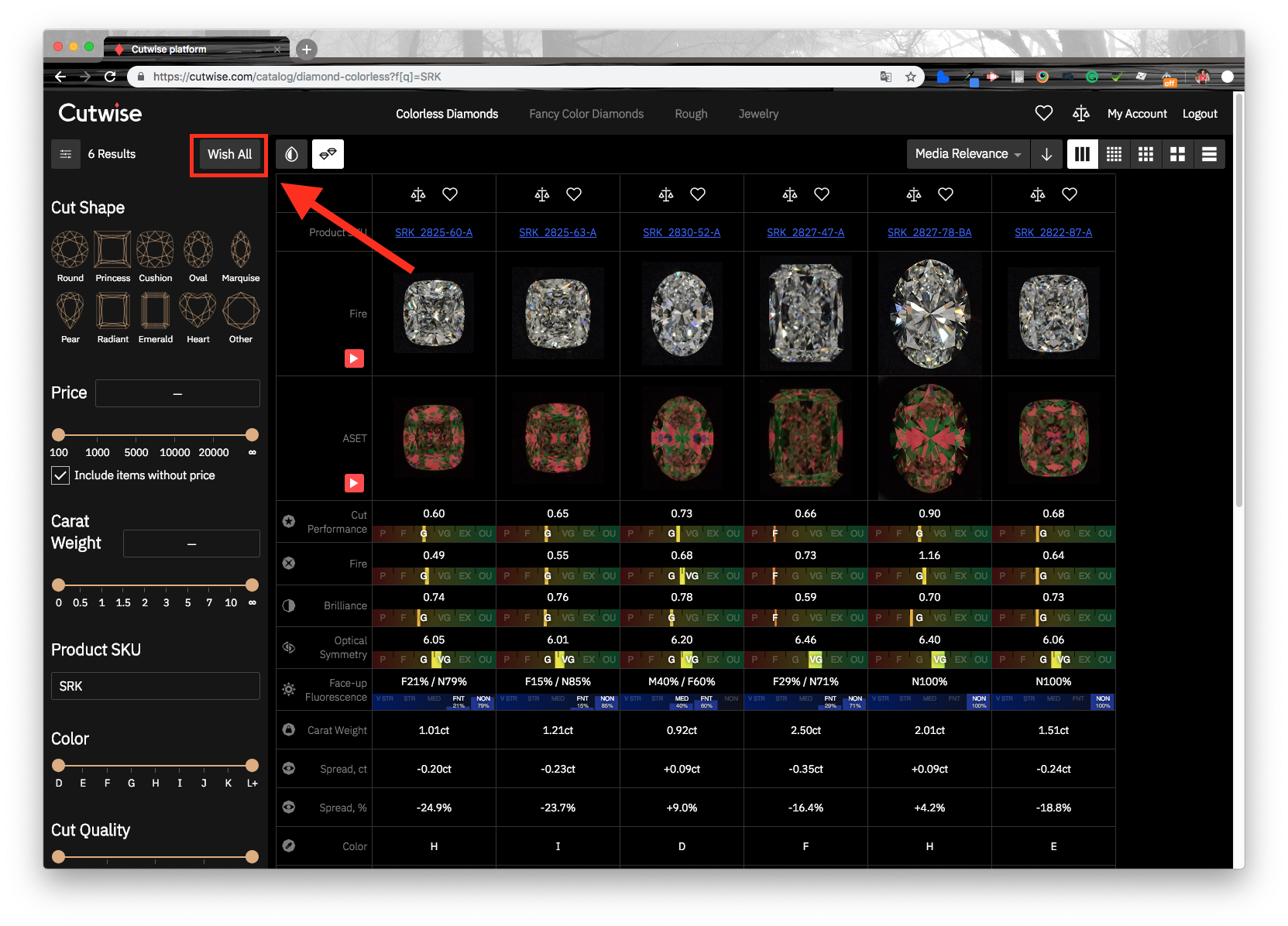
Click Wish all and select a collection from the list, or create a new collection. Cutwise adds all the found diamonds to this collection.
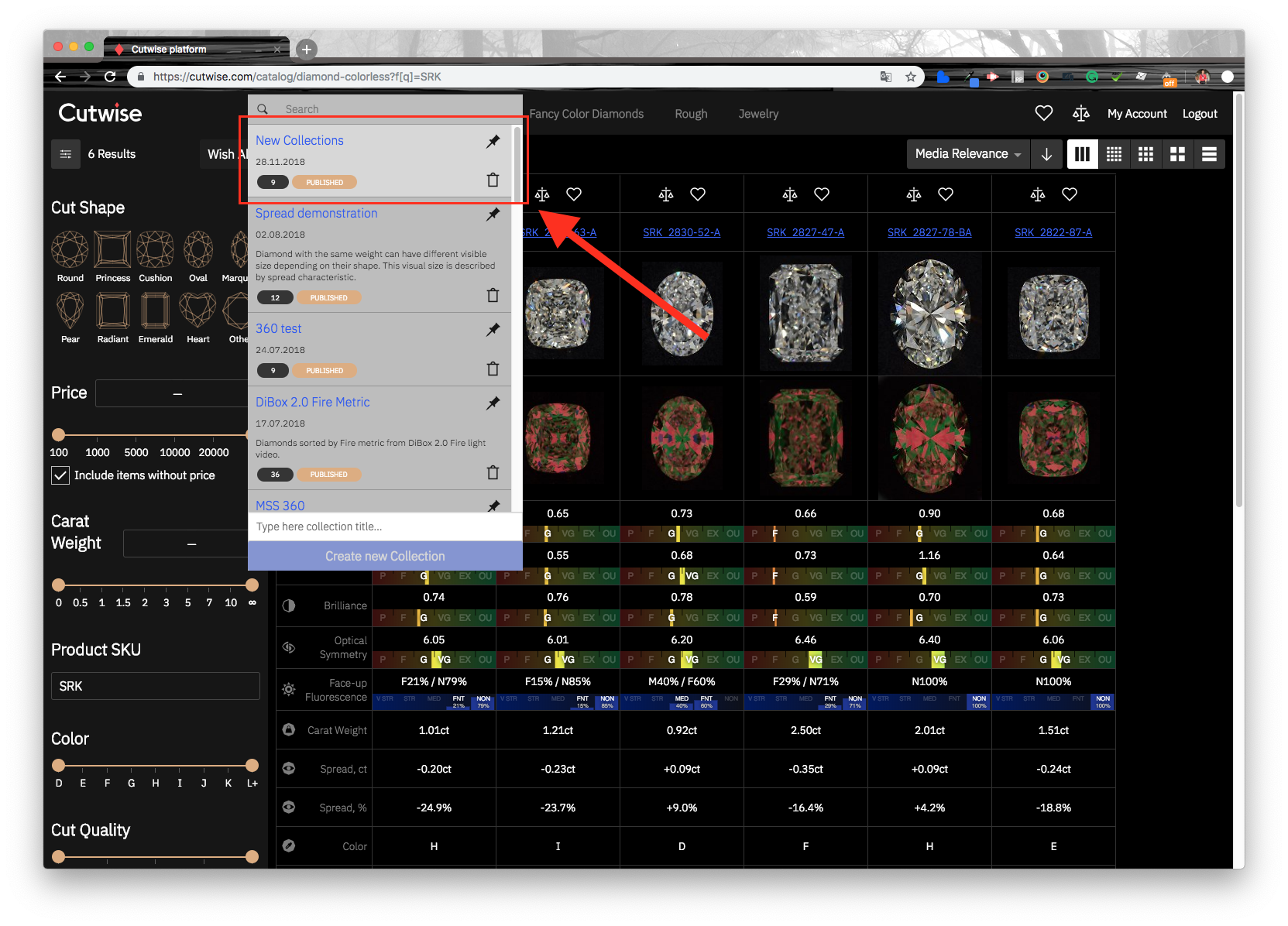
-
Optionally, pin a collection. Then you can quickly add diamonds to it.
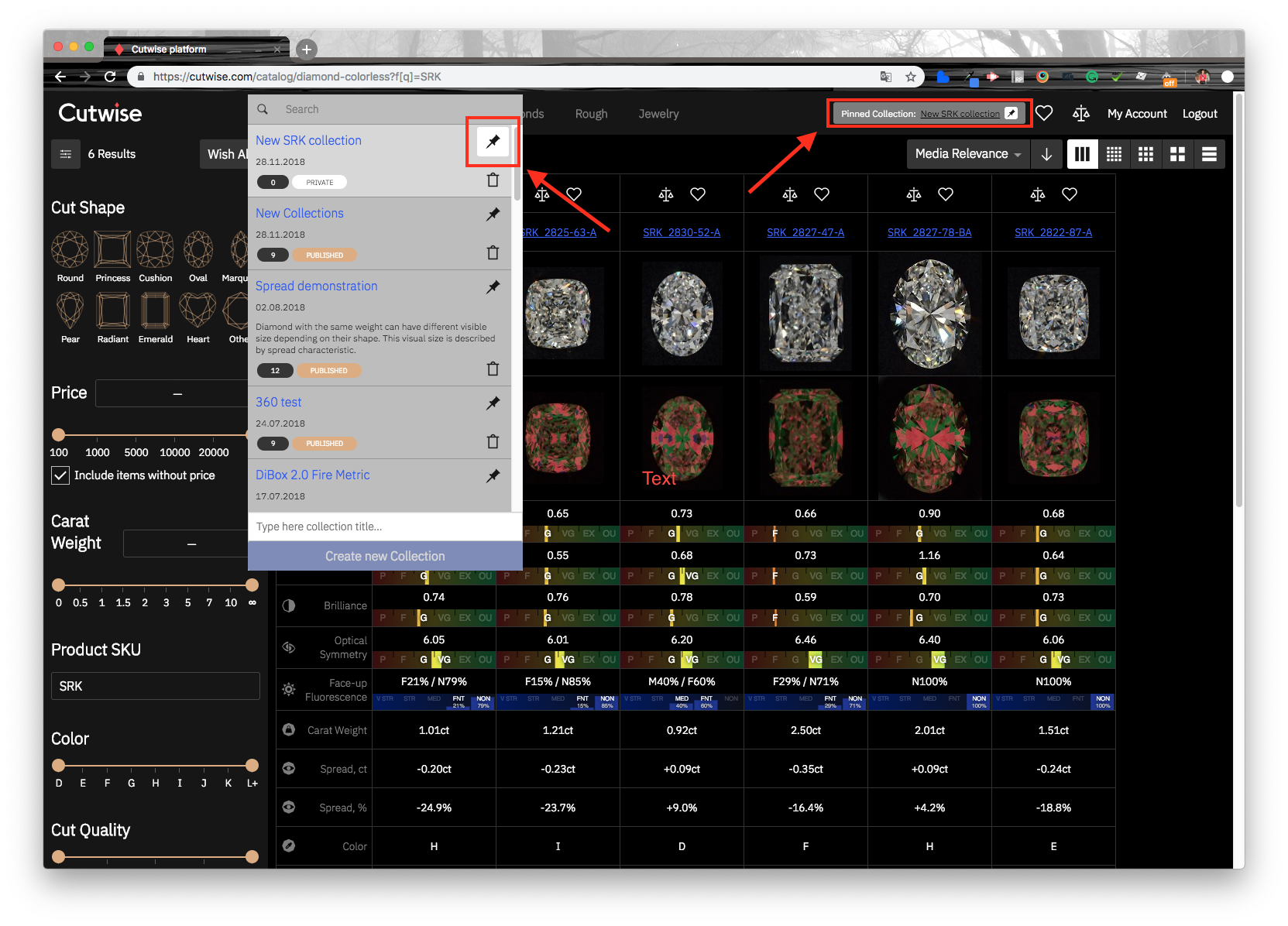
-
Open the new collection with the link in the top menu (wish menu, link to the collection).
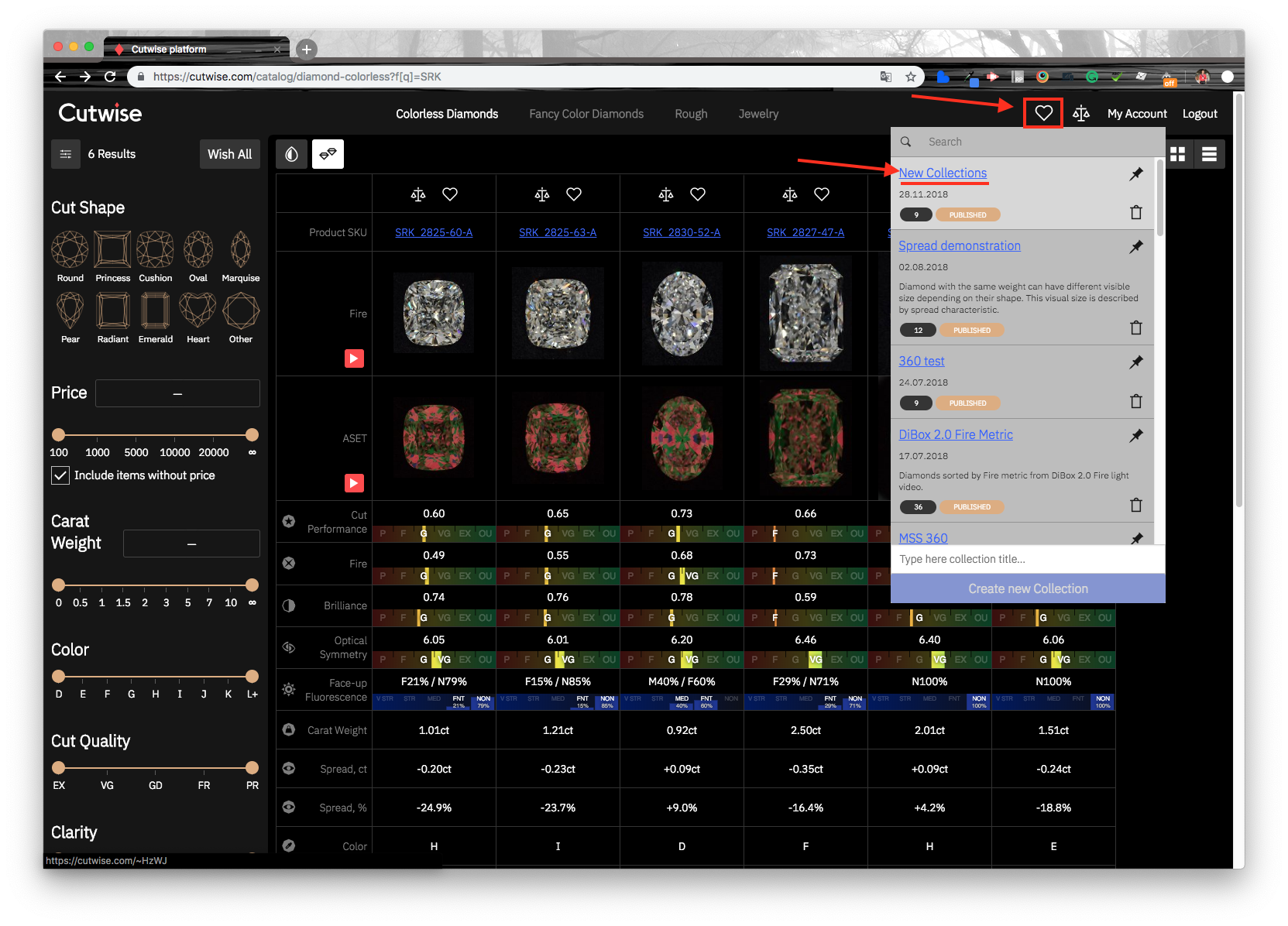
-
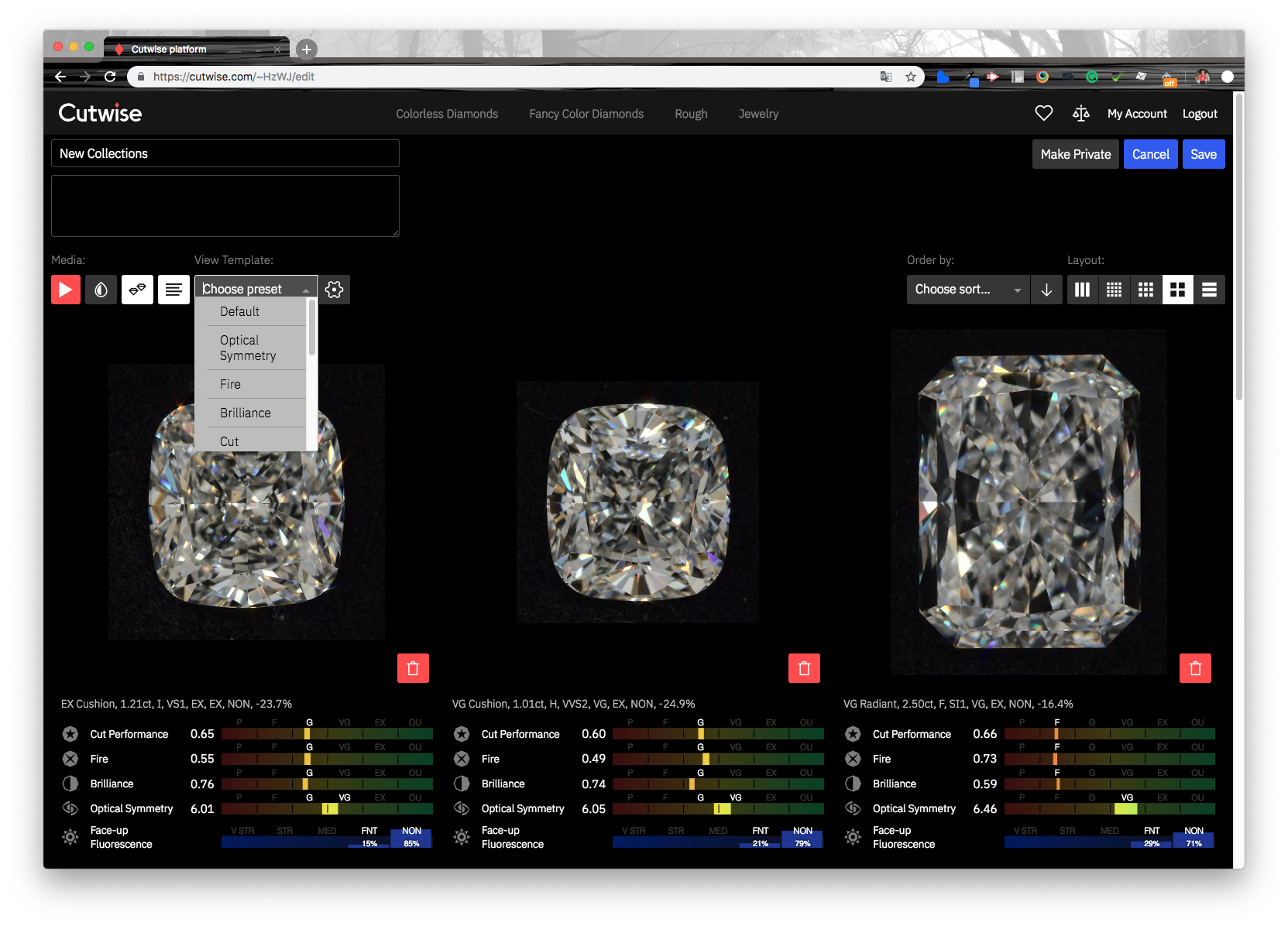
To change the View Template (media, metrics data, sorting), click Edit.
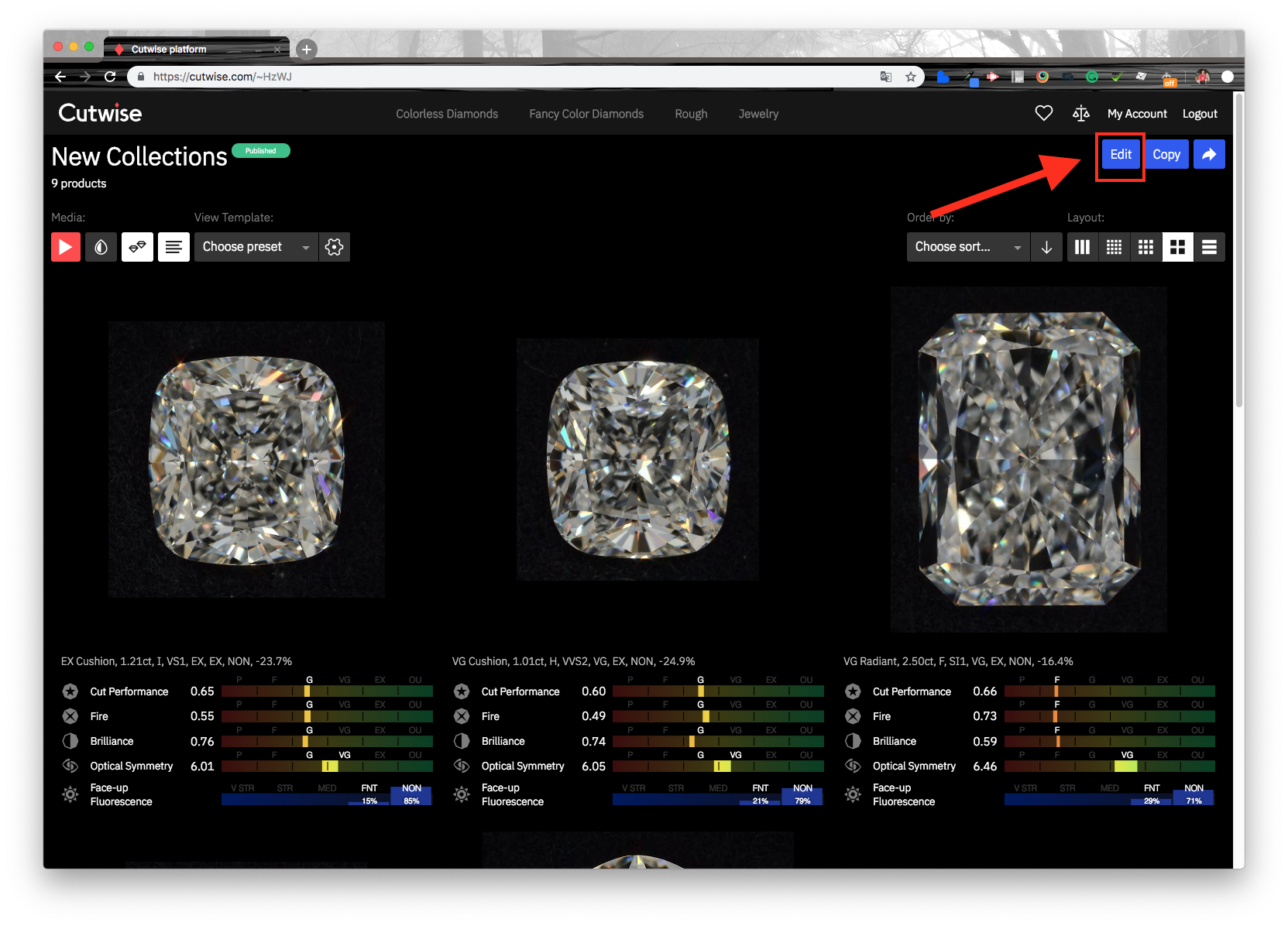
-
Make your changes, for example set the View Template to Optical Symmetry, and save the collection.
-
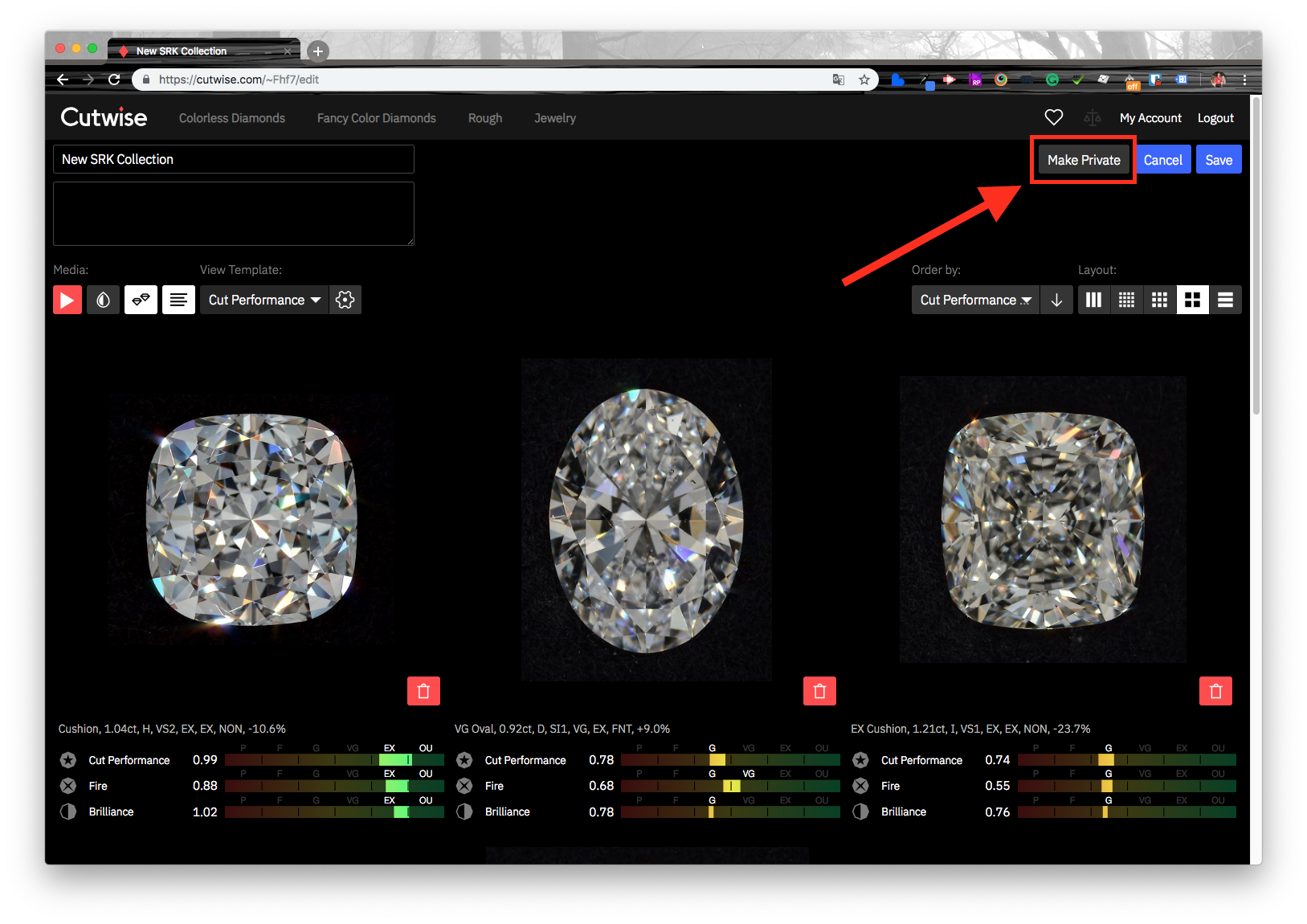
Make sure that the collection is public.
Note
Only the author can see a private collection.
Create a collection with MSS reference diamonds and new diamonds
Use this procedure for a collection like the MSS collection, which shows reference diamonds next to the new diamonds.
-
Sign in to cutwise.com.
-
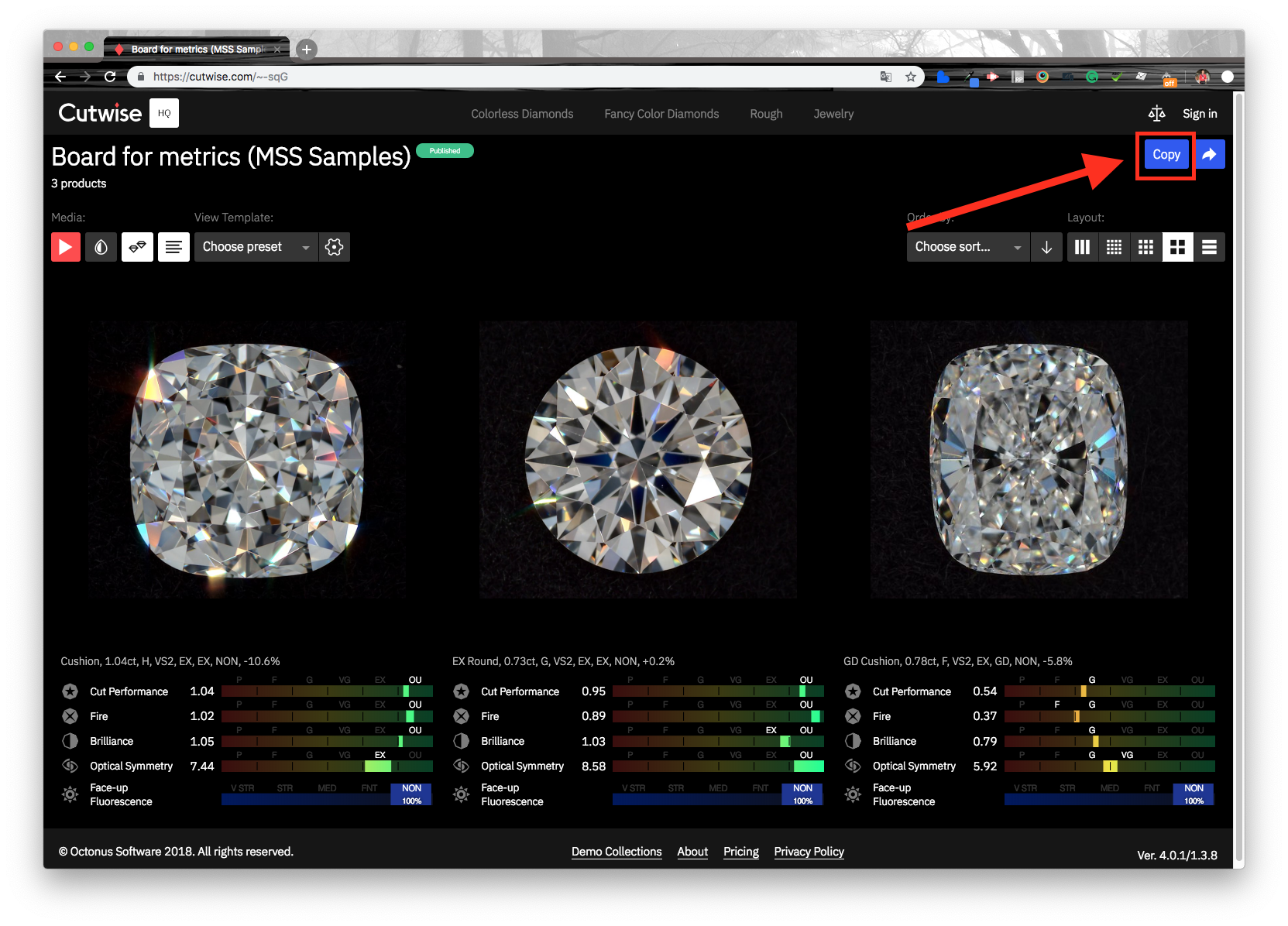
Open a demo collection with MSS samples, for example https://cutwise.com/~-sqG.
-
Click Copy on the collection page. Rename the new collection and save it.
-
Go to the main page.
-
Click All filters.
-
Enter the client prefix (for example
SRK) in the Products SKU filter and click Apply. -
Click Wish all and select the saved collection from the list. Cutwise adds all the found diamonds to this collection.
-
Open the new collection with the link in the top menu (wish menu, link to the collection).
-
To change the View Template (media, metrics data, sorting), click Edit.
-
Make your changes, for example set the View Template to Optical Symmetry, and save the collection.
-
Make sure that the collection is public.
Check the result
All clients can change the metrics presets of the public collection in view mode. When the page reloads, the collection shows your saved settings again.
Next
- Share Access: change the access of the diamonds in the collection.