 Documentation
Publish to RapNet
Show the Cutwise media of a diamond on its RapNet listing.
After these steps, the RapNet listing of your diamond shows a Video label that opens the Cutwise Widget.
Before you start
- The diamond is published on RapNet.
- The same diamond is on Cutwise as a natural diamond scanned in Cutwise. Lab-grown and virtual diamonds cannot be sent to RapNet.
- Your Cutwise account can manage your company's stock.
- You know your RapNet Seller ID and the RapNet stock number of the diamond.
Send the media to RapNet
-
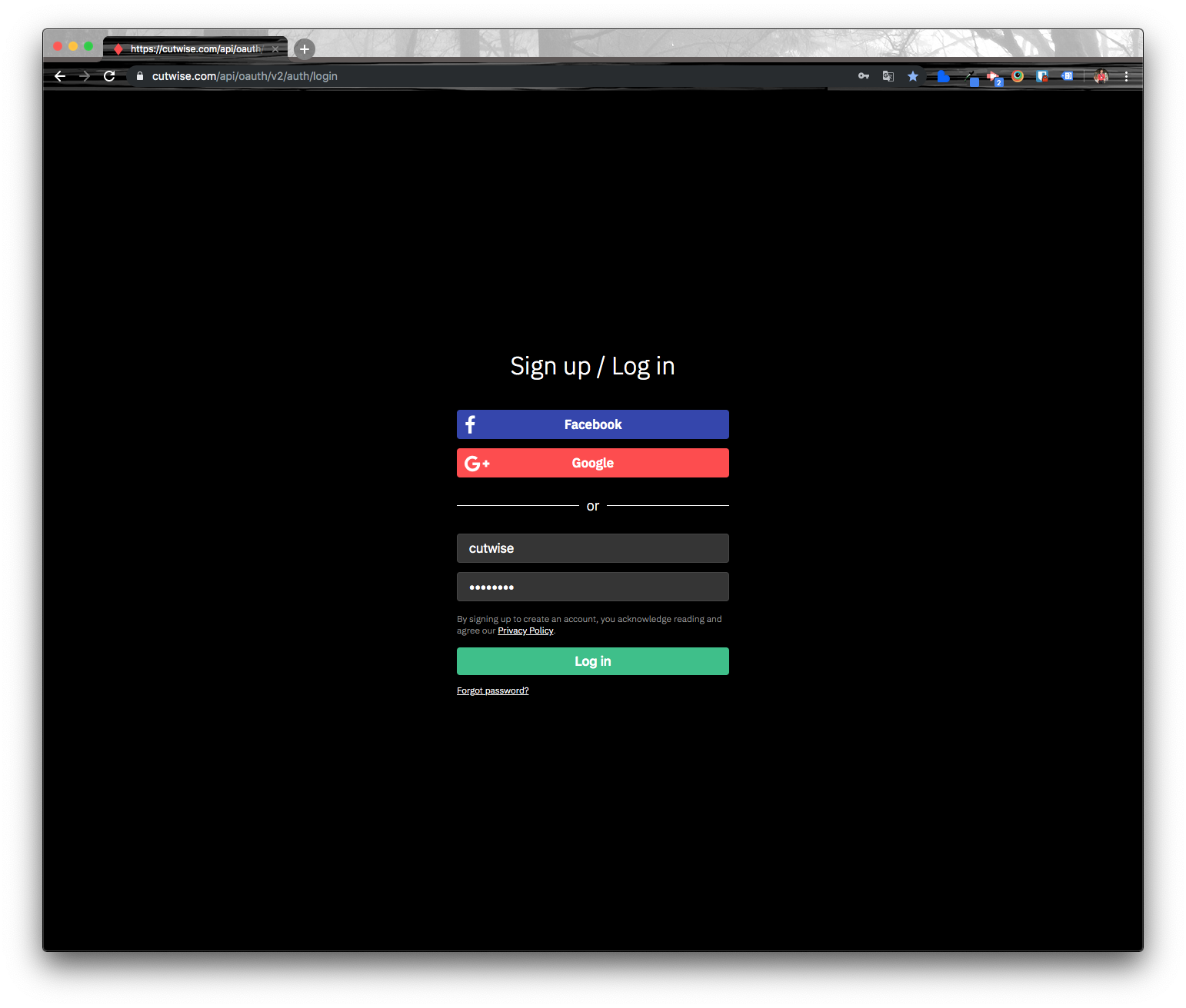
Sign in to cutwise.com.
-
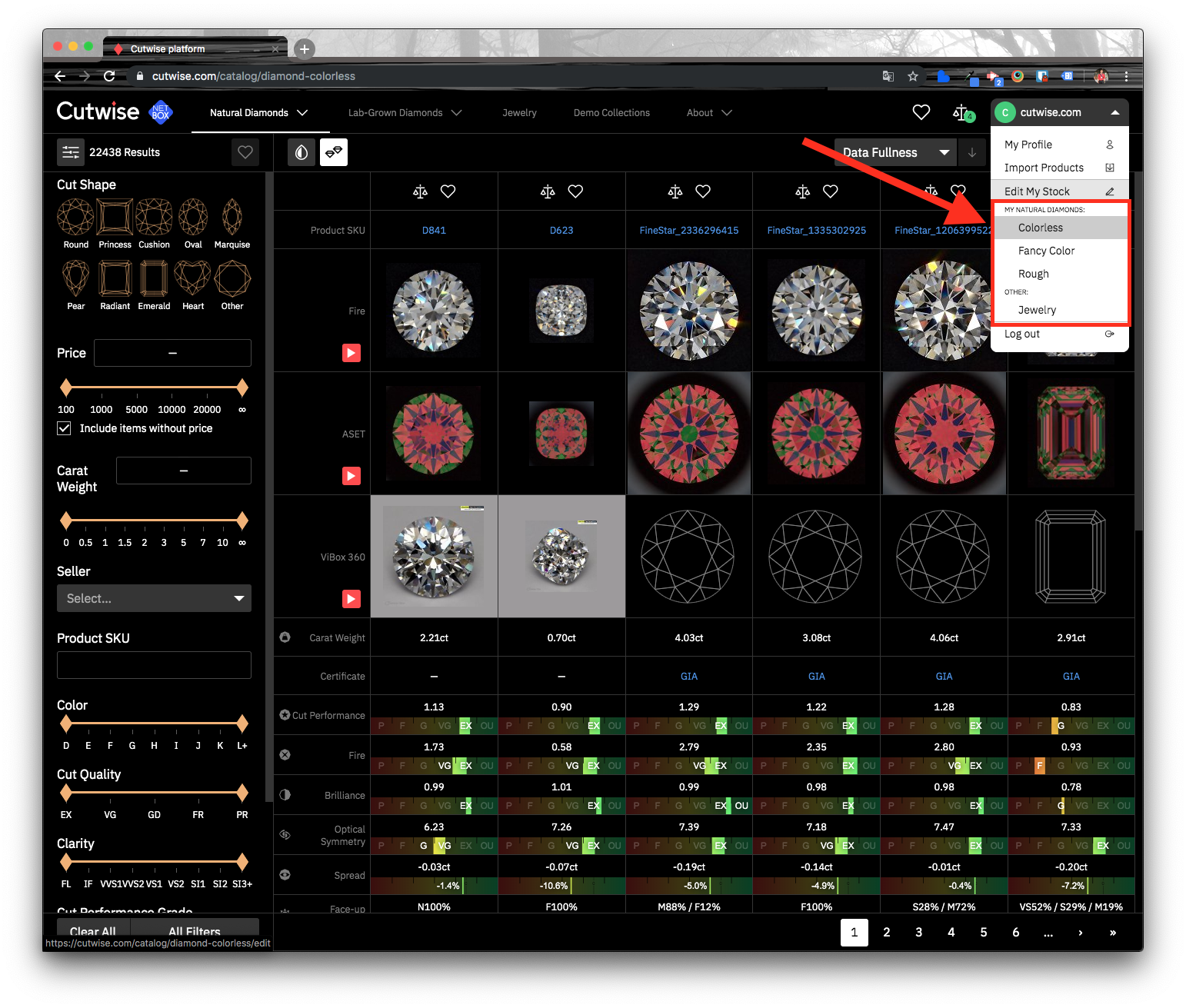
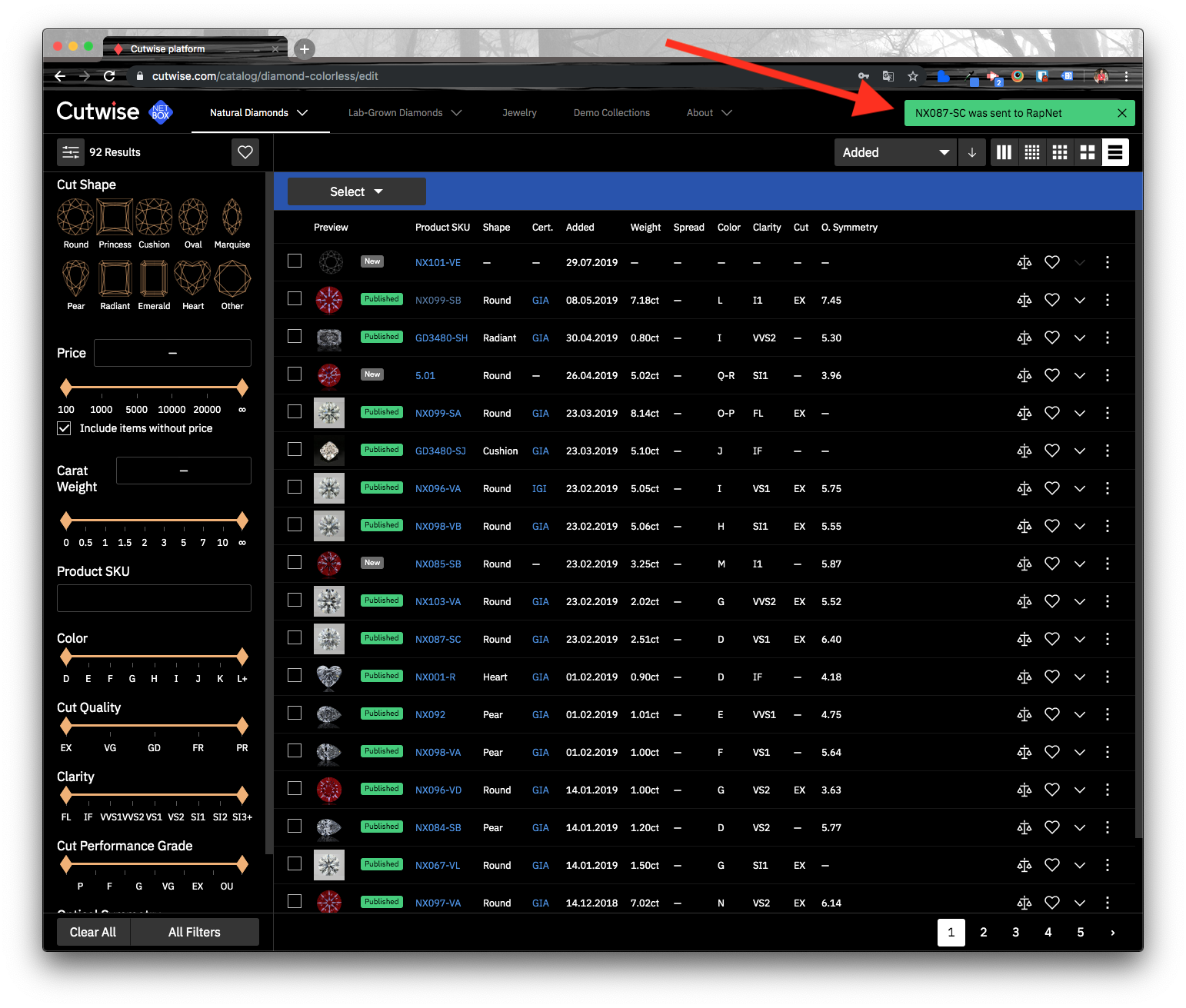
Open the back office page of your diamonds. For colorless natural diamonds, this is https://cutwise.com/catalog/diamond-colorless/edit.
-
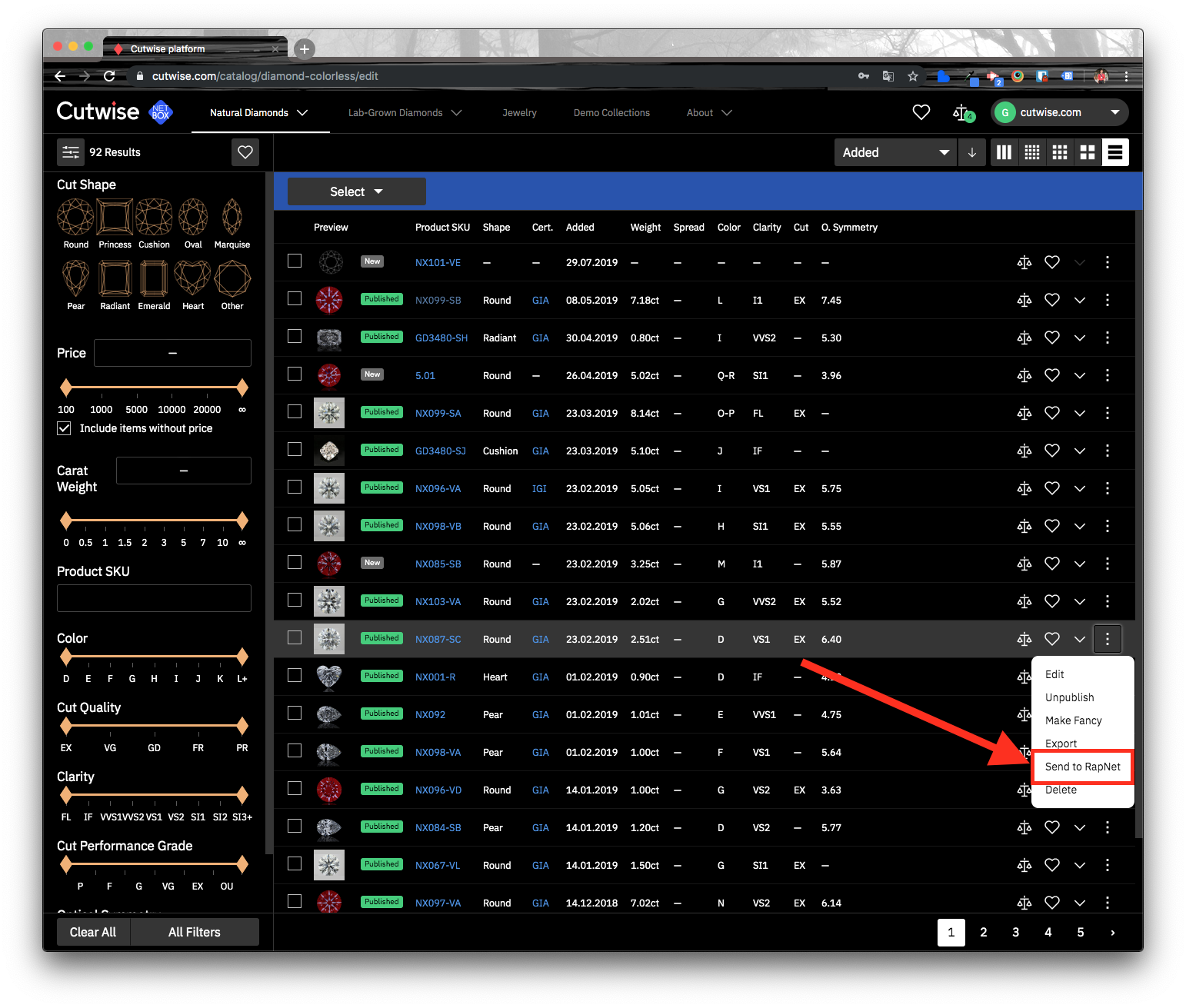
Open the context menu of the diamond and click Send to RapNet.
-
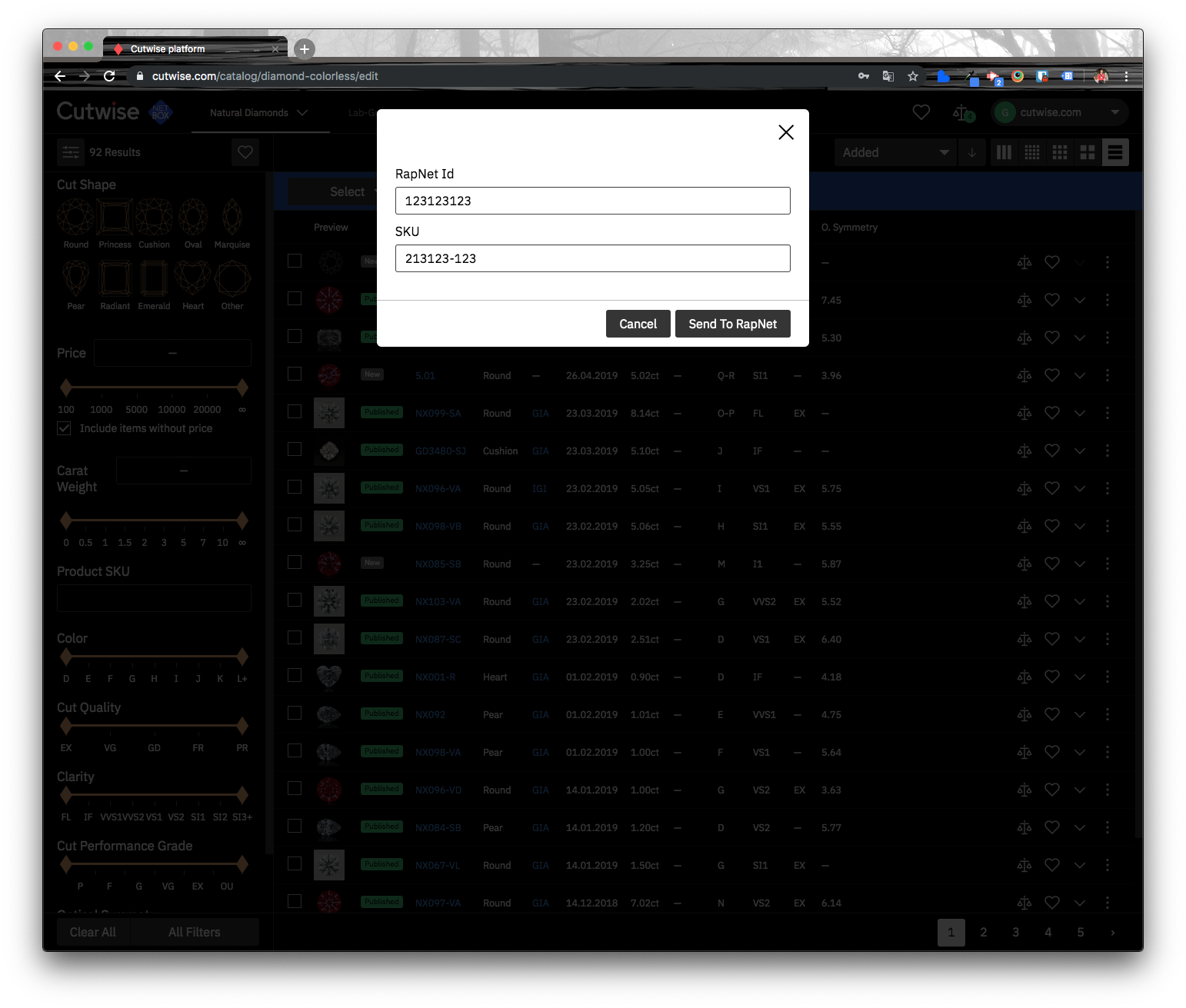
Enter your RapNet Seller ID and the RapNet Stock Number of the diamond. Both fields are required. Cutwise fills the stock number with the Cutwise SKU, so change it if your RapNet listing uses a different one.
-
Click Send To RapNet. If the diamond already has a Cutwise video on RapNet, Cutwise replaces it.
Note
Instead of sending, you can copy the widget link. Click Copy next to the link at the top of the Send To RapNet dialog. Then paste the link into the Diamond Image Link field of the diamond in RapNet.
Check the result
-
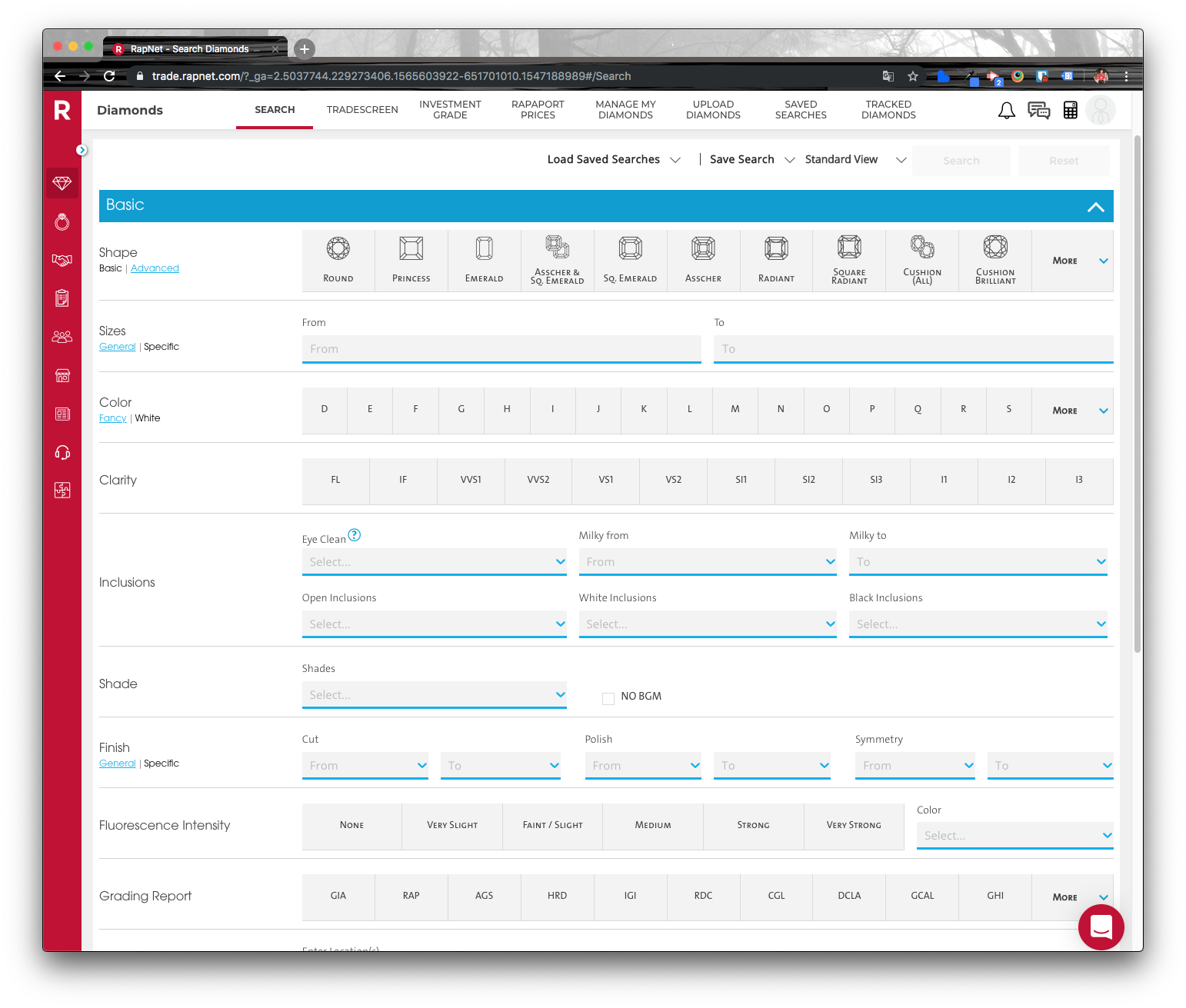
Go to the Search page in RapNet.
-
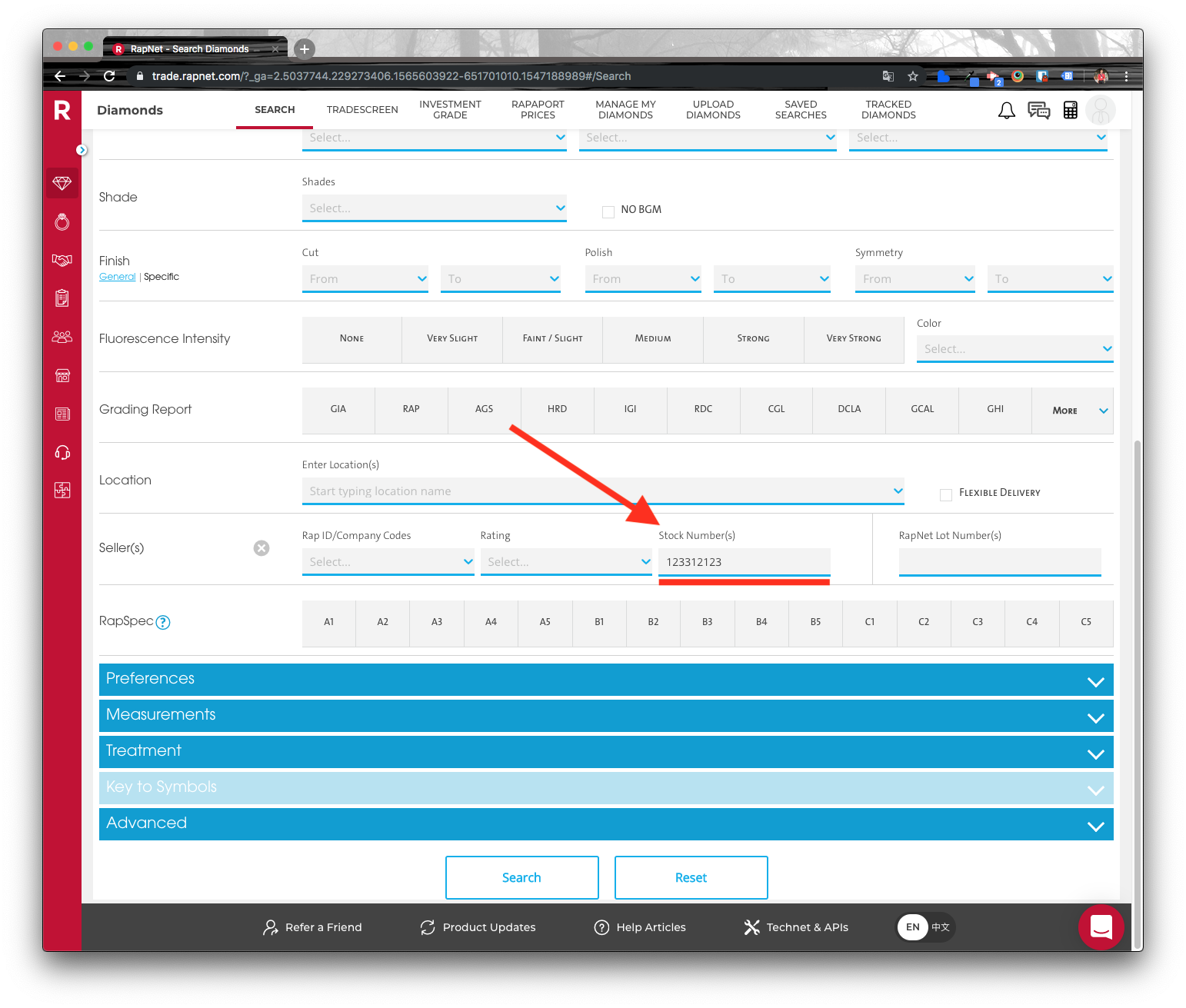
Find the diamond, for example by its stock number.
-
Click the diamond. A diamond with linked Cutwise data has a Video label. Click the video button to open the Cutwise Widget.
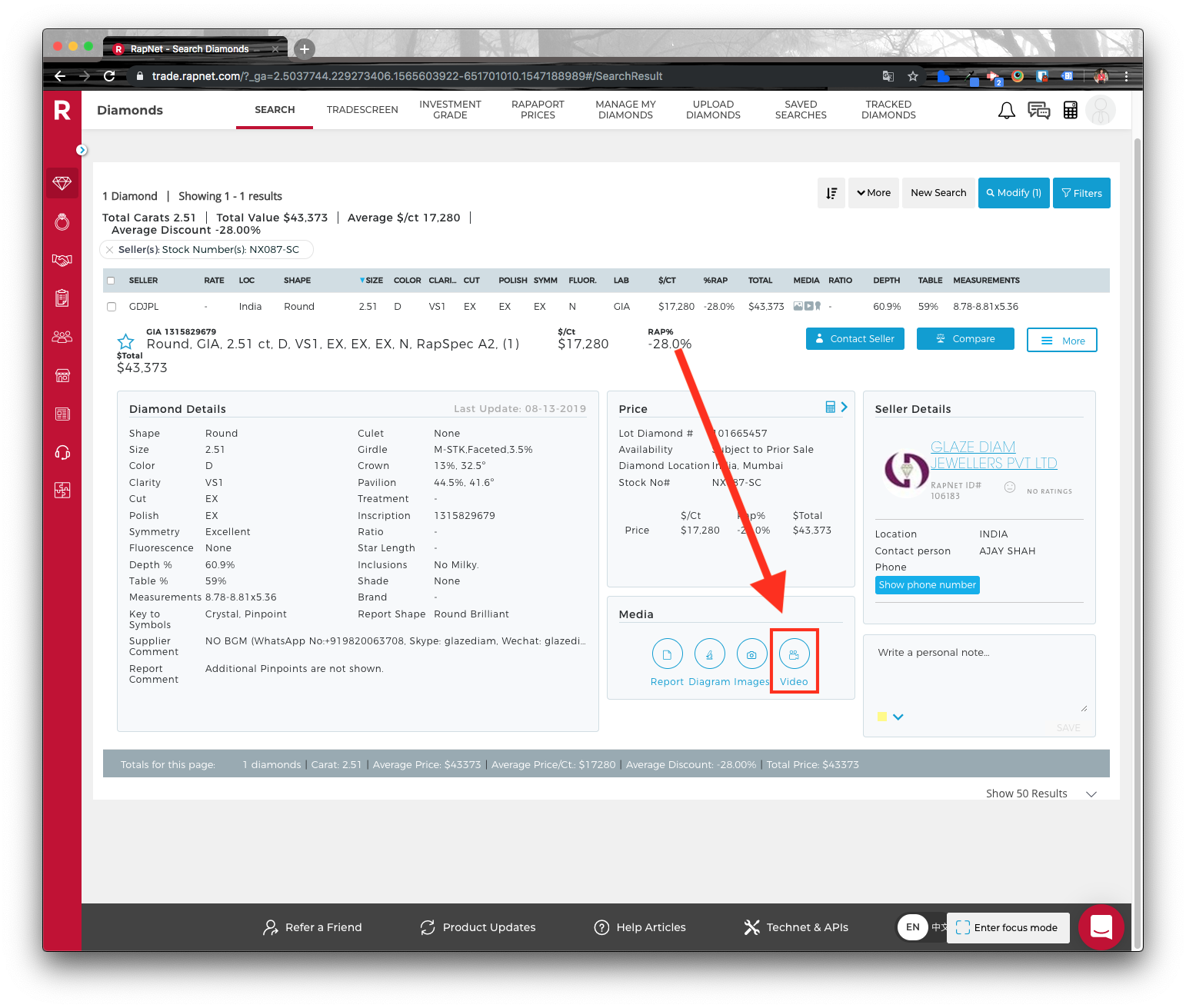
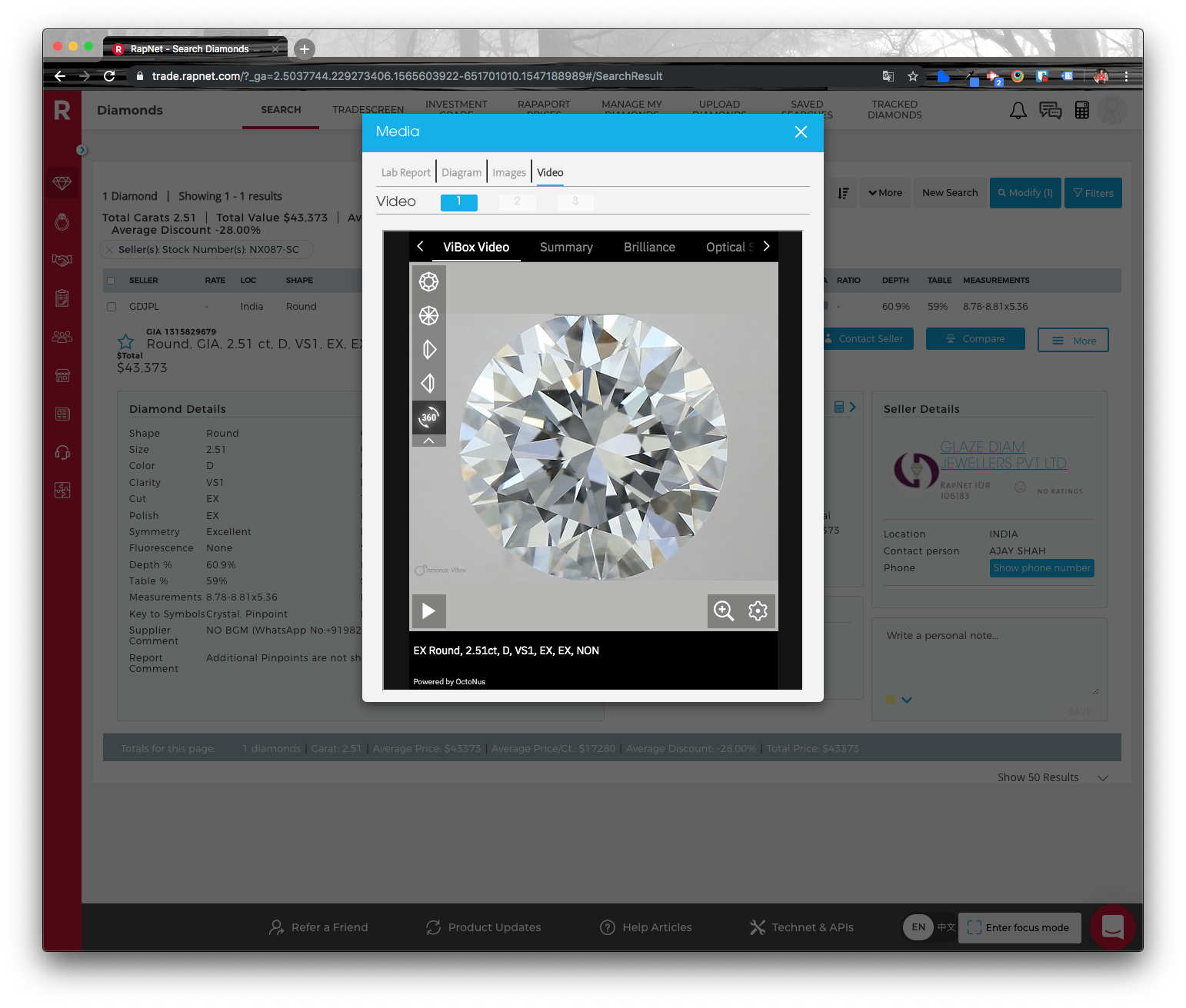
The video on RapNet Web:
The video in the RapNet mobile app:
Next
- Cutwise Widget for RapNet: the widget template that RapNet shows.