
Make a DiLog from a 3D model
Upload the model of a polished diamond or a cut design and get its cut optical performance report. Your first one is free.
Before you start
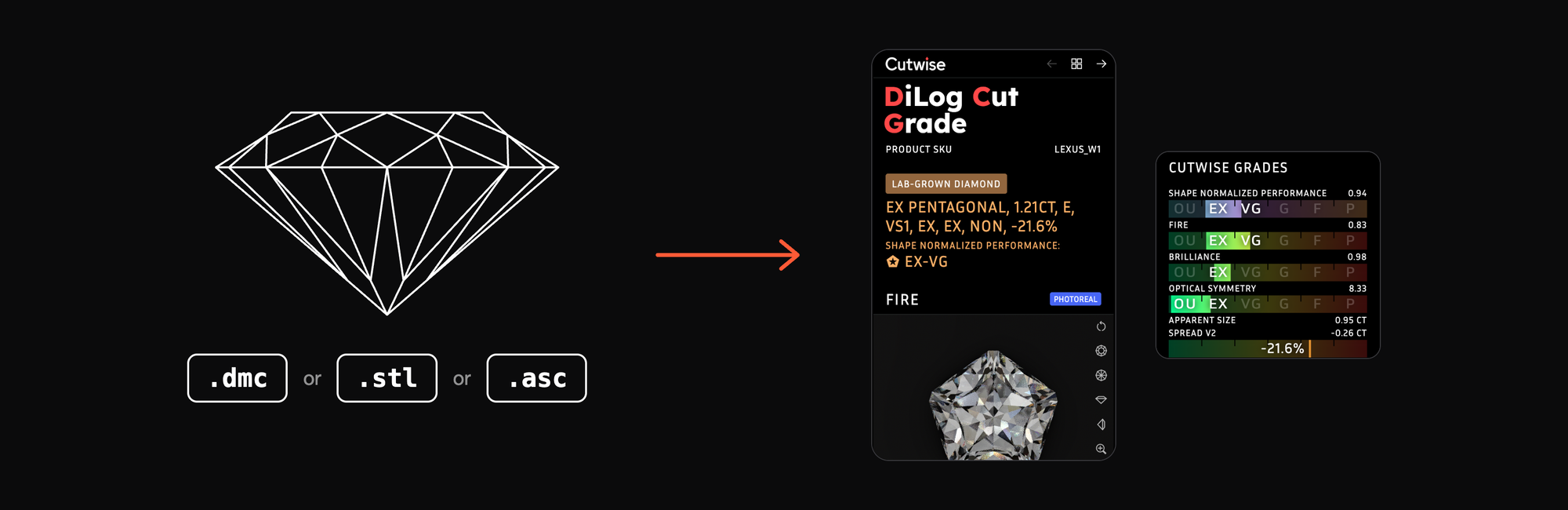
All you need is the 3D model of a polished diamond or a cut design as a .dmc, .stl or .asc file, up to 10 MB.
Open the service and sign in
Note
Your first DiLog is free. Each personal account gets one DiLog of any type free every 24 hours, so you need no payment to start.
-
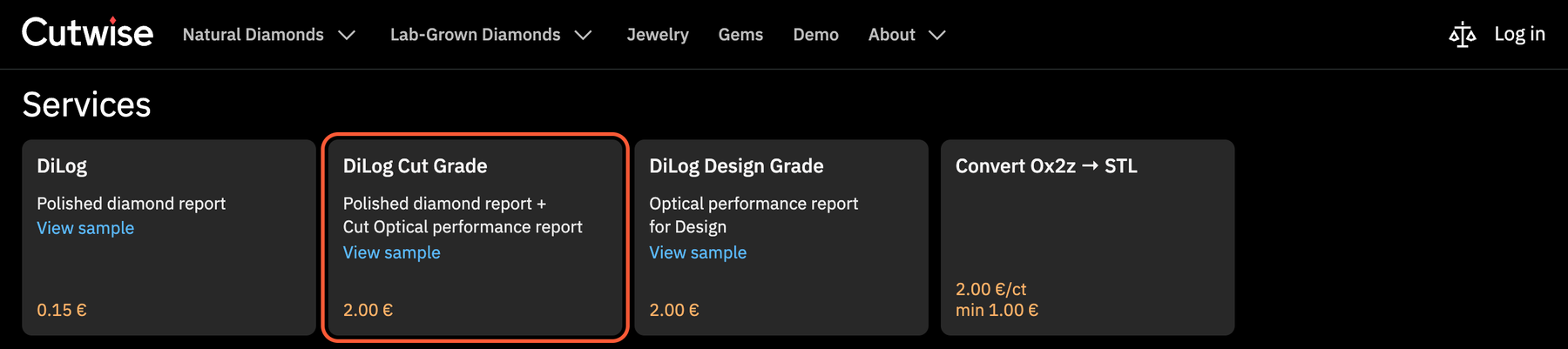
Open cutwise.com/services.
-
Click the DiLog Cut Grade card. It takes the model of a polished diamond and of a cut design alike.
-
In "Log In to DiLog Cut Grade", choose one of two ways in. If you are already signed in, the upload window opens instead, so continue at Upload your model.
| Google or Facebook | Email and password | |
|---|---|---|
|
or |
|
Upload your model
-
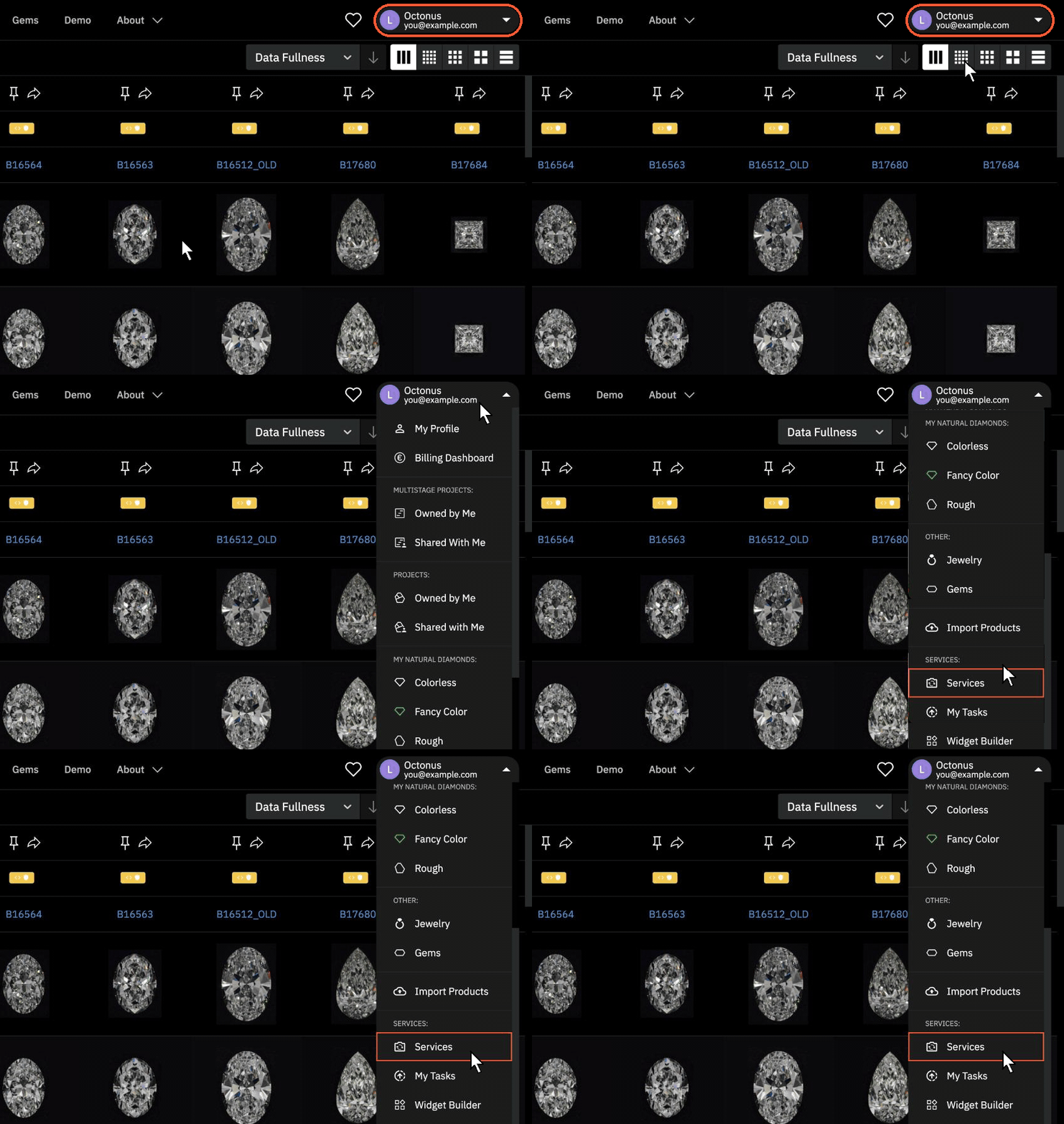
Return to cutwise.com/services. When you are signed in, you can also click your name in the top right corner of any Cutwise page and choose Services near the bottom of the menu.
-
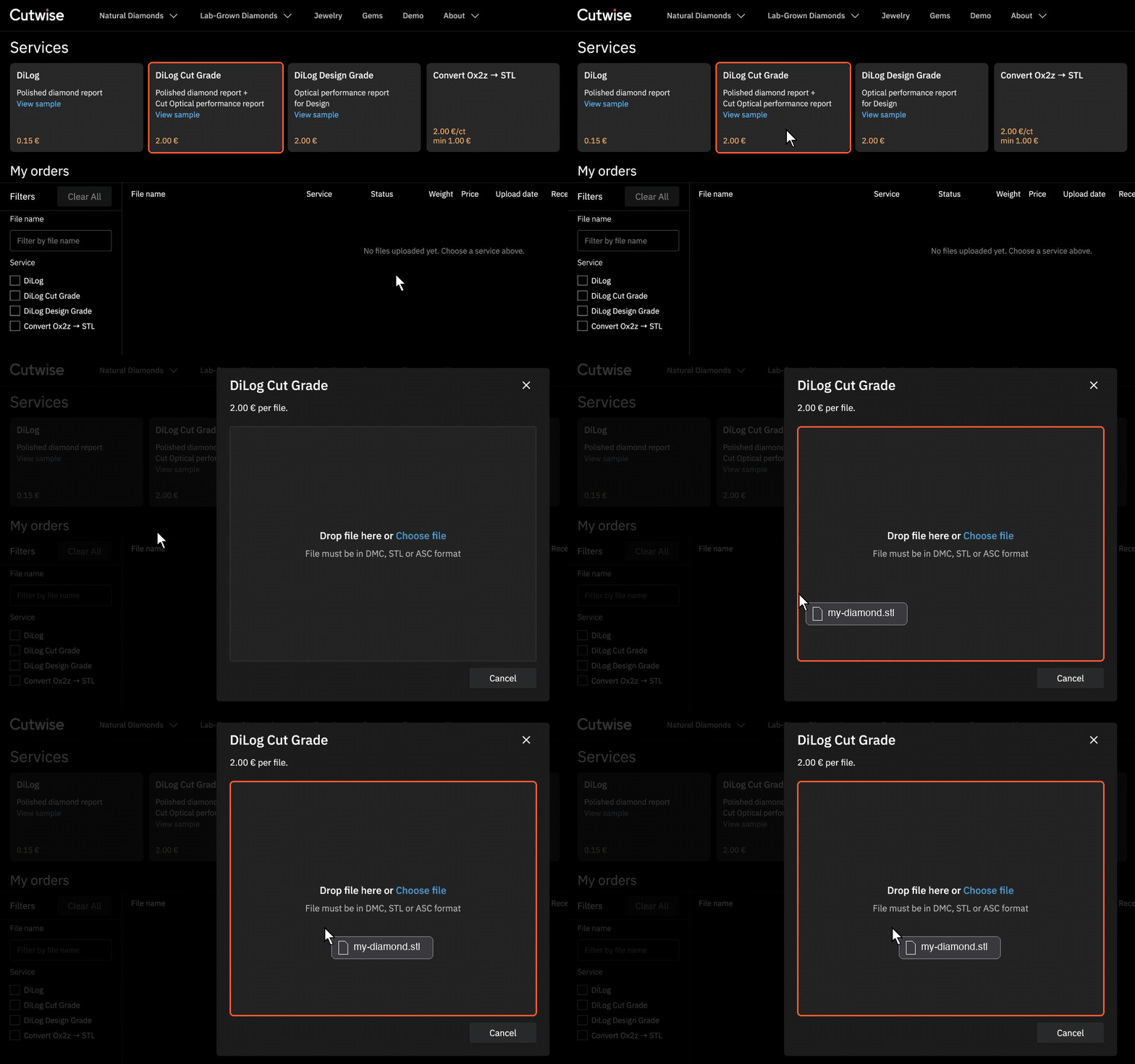
Click the DiLog Cut Grade card.
-
Drop your model file into the upload window, or click Choose file and select it.
Check the result
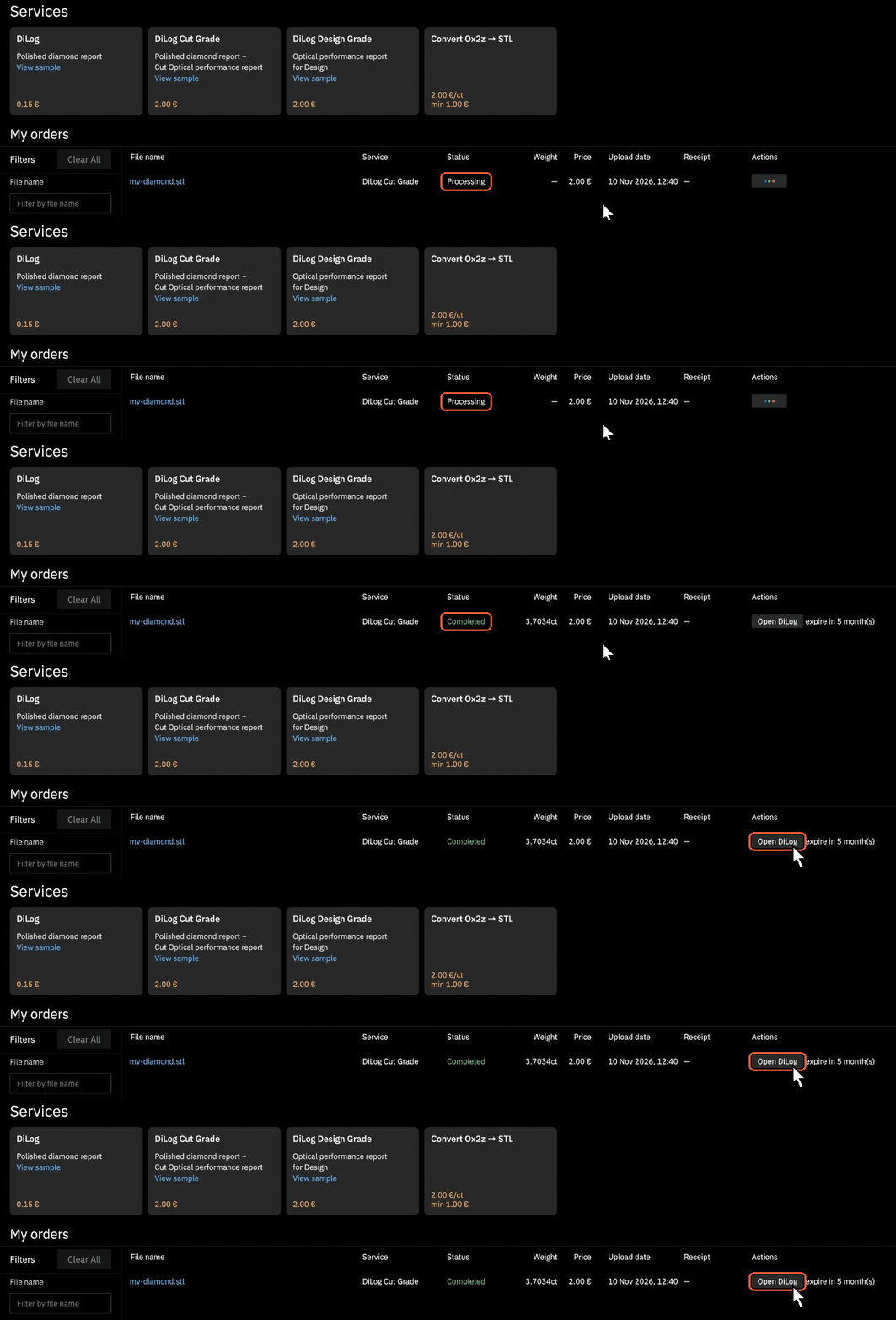
- Find your file in the My orders table on the Services page. Its status is Processing.
- Wait for the status to change to Completed. The table updates automatically.
-
Click Open DiLog in the Actions column to open your report.
Top up for more orders
Further DiLog Cut Grades within 24 hours cost €2.00 per file, paid from your cash balance. A basic DiLog without the cut grade costs €0.15, see DiLog prices. The minimum top-up is €1.
- Open the user menu and choose Billing Dashboard.
- Next to Cash balance, click Top Up.
- In Top Up Balance, enter the amount in euros and click Top Up.
- Pay on the Stripe page.
Warning
If your balance does not cover a paid order, top up and upload the file again.
Next
- DiLog prices — all DiLog types and how the free DiLog works.
- Billing — balances, expenses and transactions.