 Documentation
Color Grading Demo
Grade the color of demo diamonds against color references, and see the grades on Cutwise pages.
Grade the color of demo diamonds by hand and compare your grades with the automatic Cutwise color score.
Before you start
You need a Cutwise account. You can use your Cutwise account or sign up with Google or Facebook. To get an account, you can also email info@cutwise.com.
Steps
-
Go to https://cutwise.com/ and log in to the Cutwise platform.

-
Open the color grading demo link: https://cutwise.com/grading/custom/color-1?c=AEhY&sp=75.
-
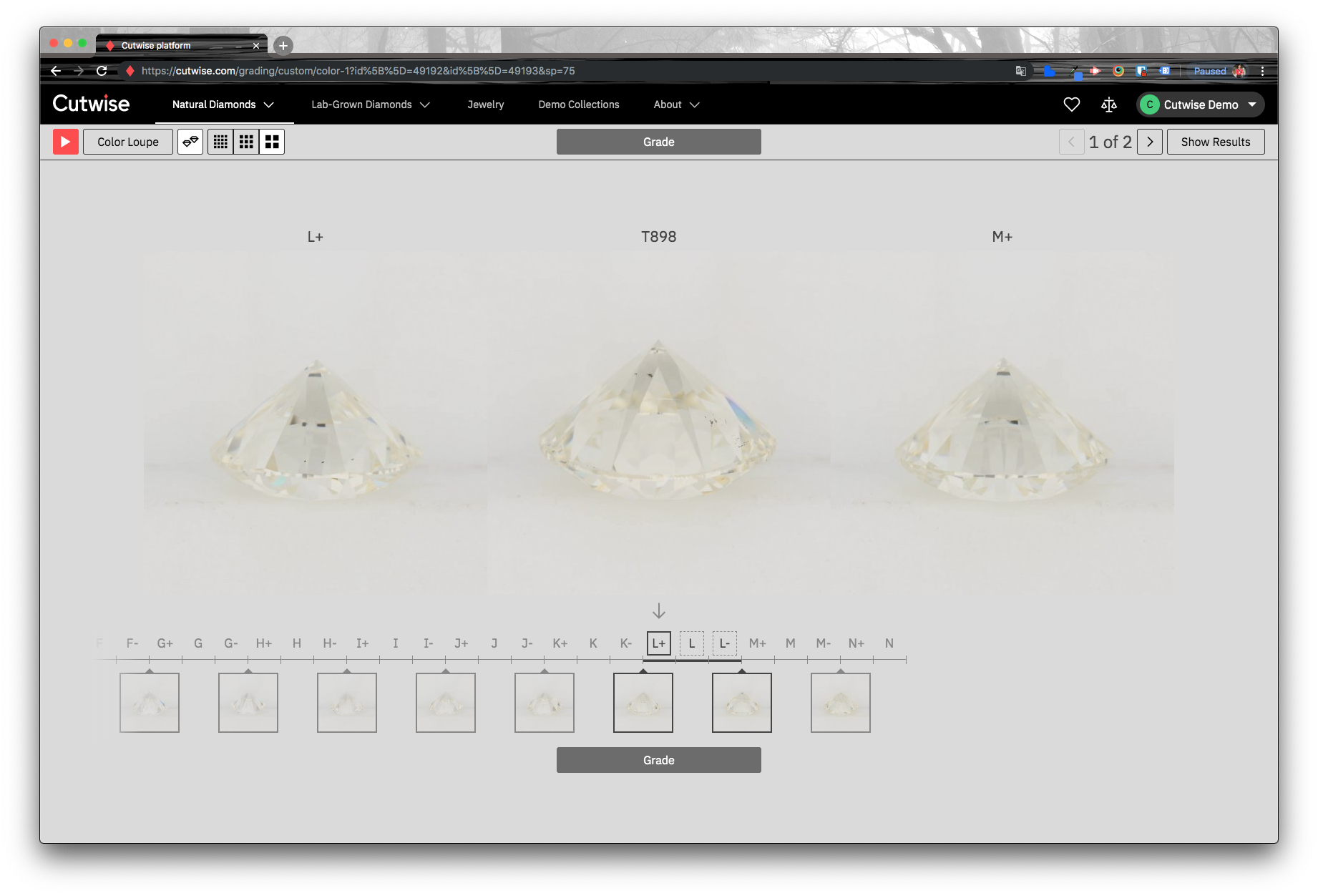
Move the diamond in the center of the screen to the sub-grade that matches it. Use the arrow keys or the mouse. See Control elements.
-
Click Grade, or press Enter. Cutwise applies the selected grade and moves to the next diamond.
-
Repeat steps 3 and 4 for every diamond.
Check the result
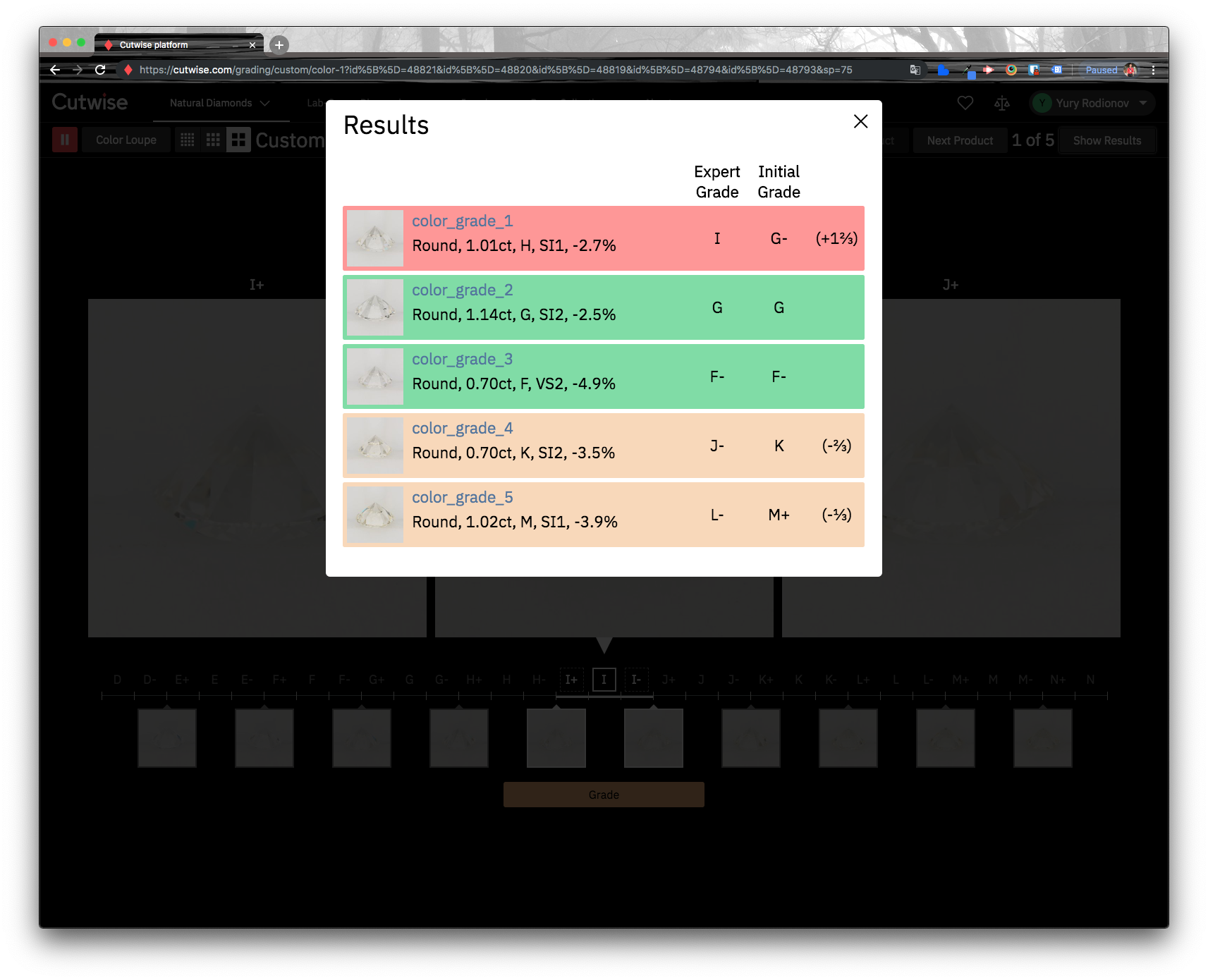
When all diamonds are graded, the grading results show the difference between the operator's grade and the automatic Cutwise color score.
The color grades you set are also shown on other Cutwise pages:
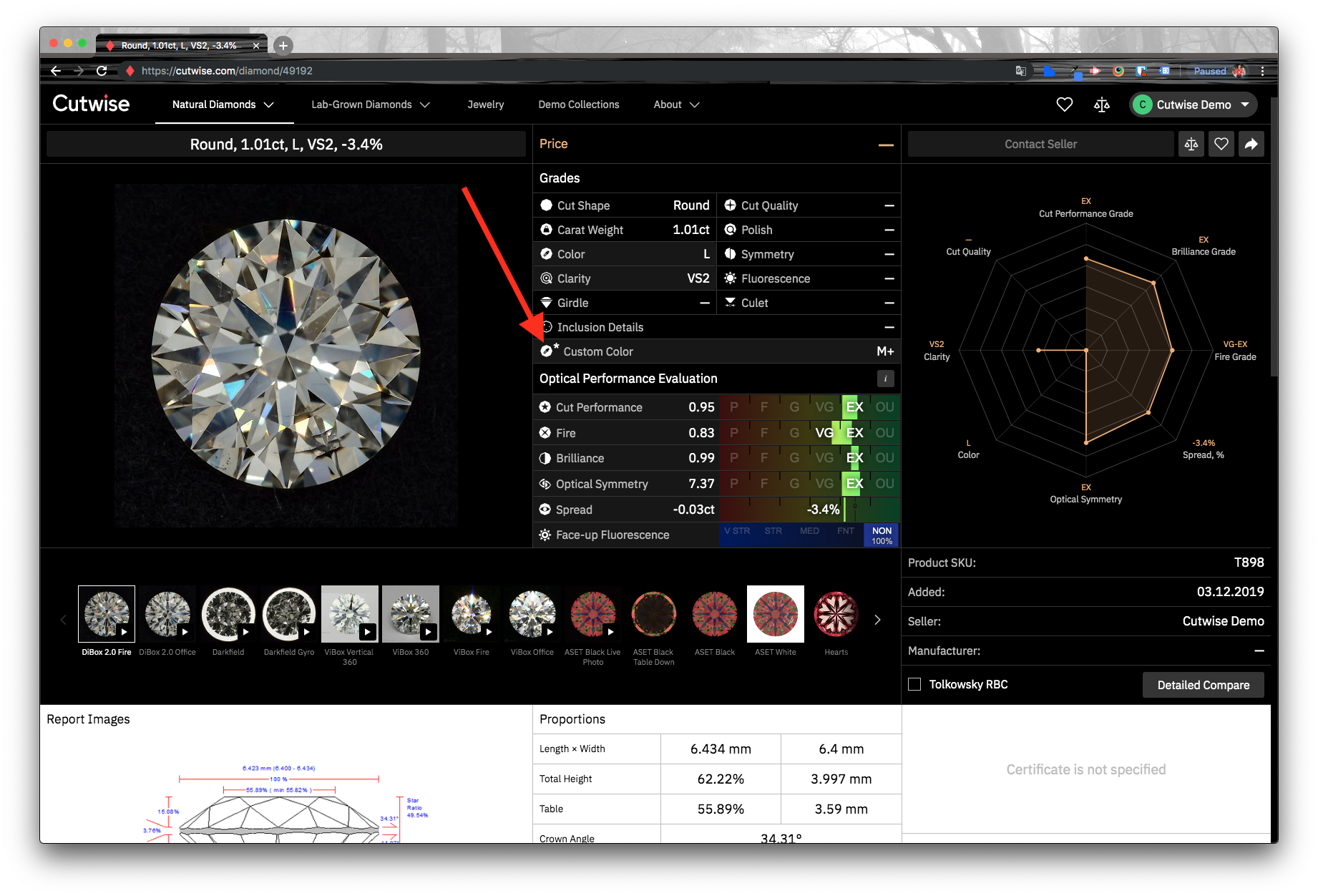
- diamond properties on the diamond page;
- the diamond placed between the references on the diamond page;
- collections;
- the diamond catalog;
- comparison;
- a custom widget.
Examples: https://cutwise.com/diamond/49192 and https://cutwise.com/~AEhY.
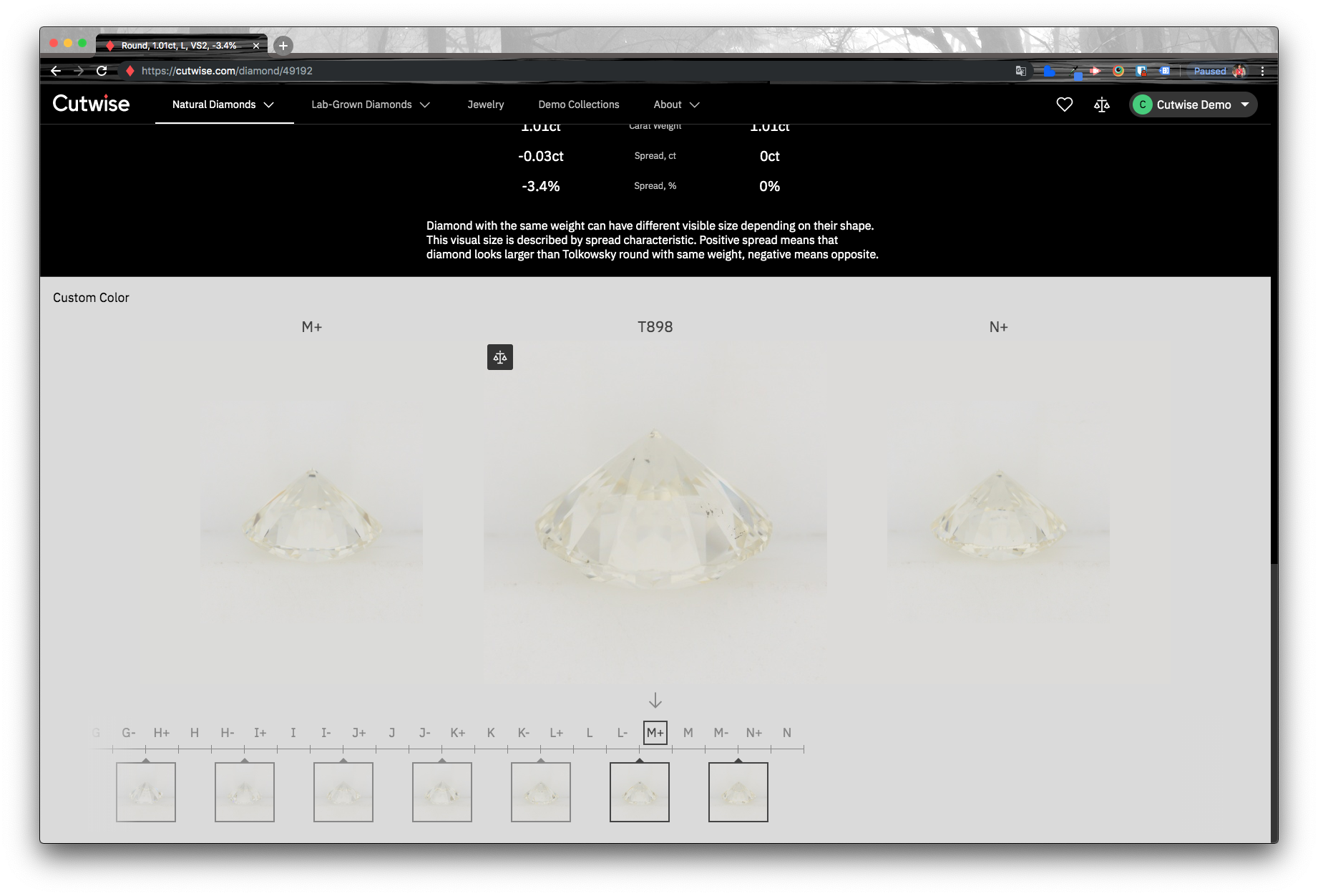
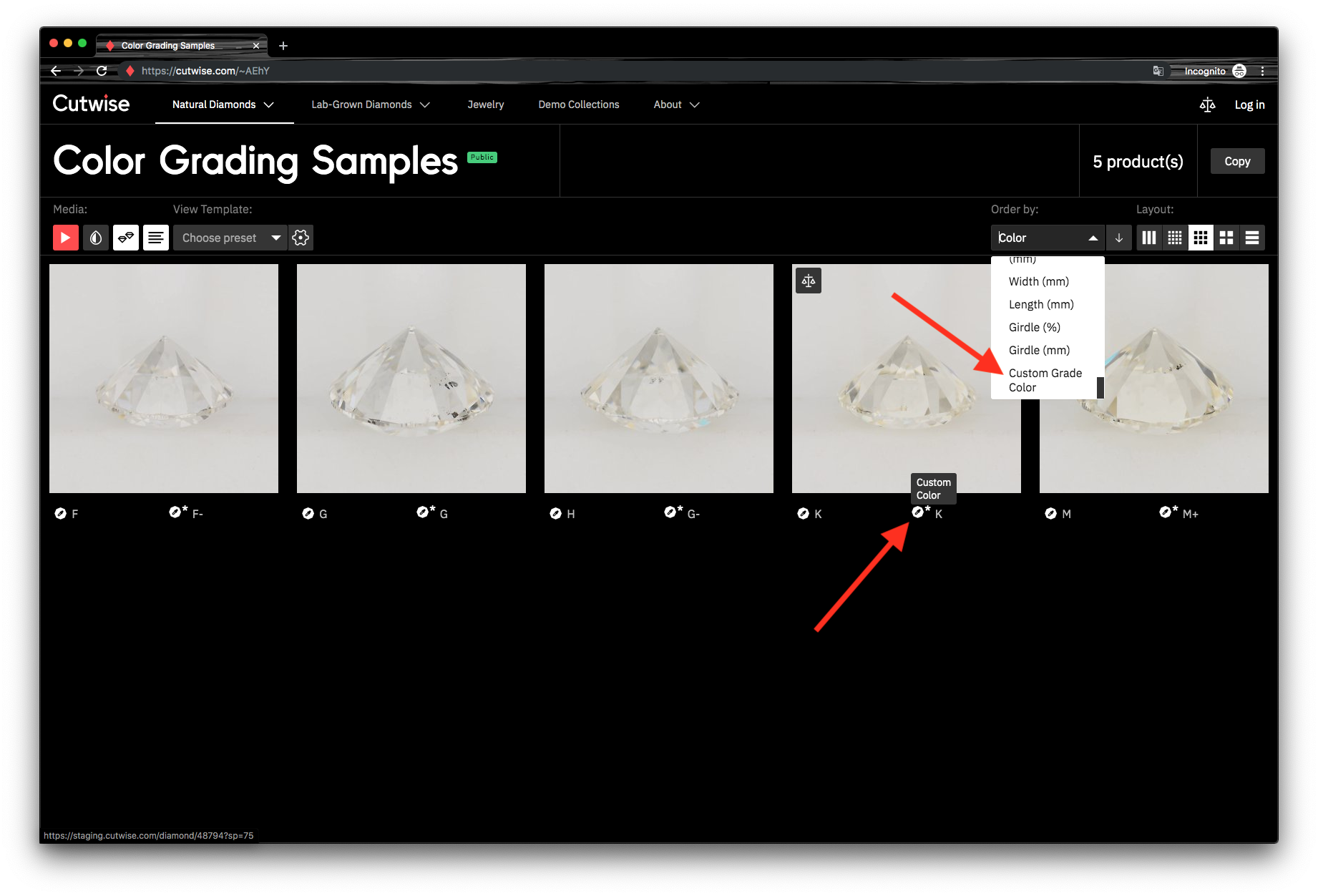
Reference
Control elements
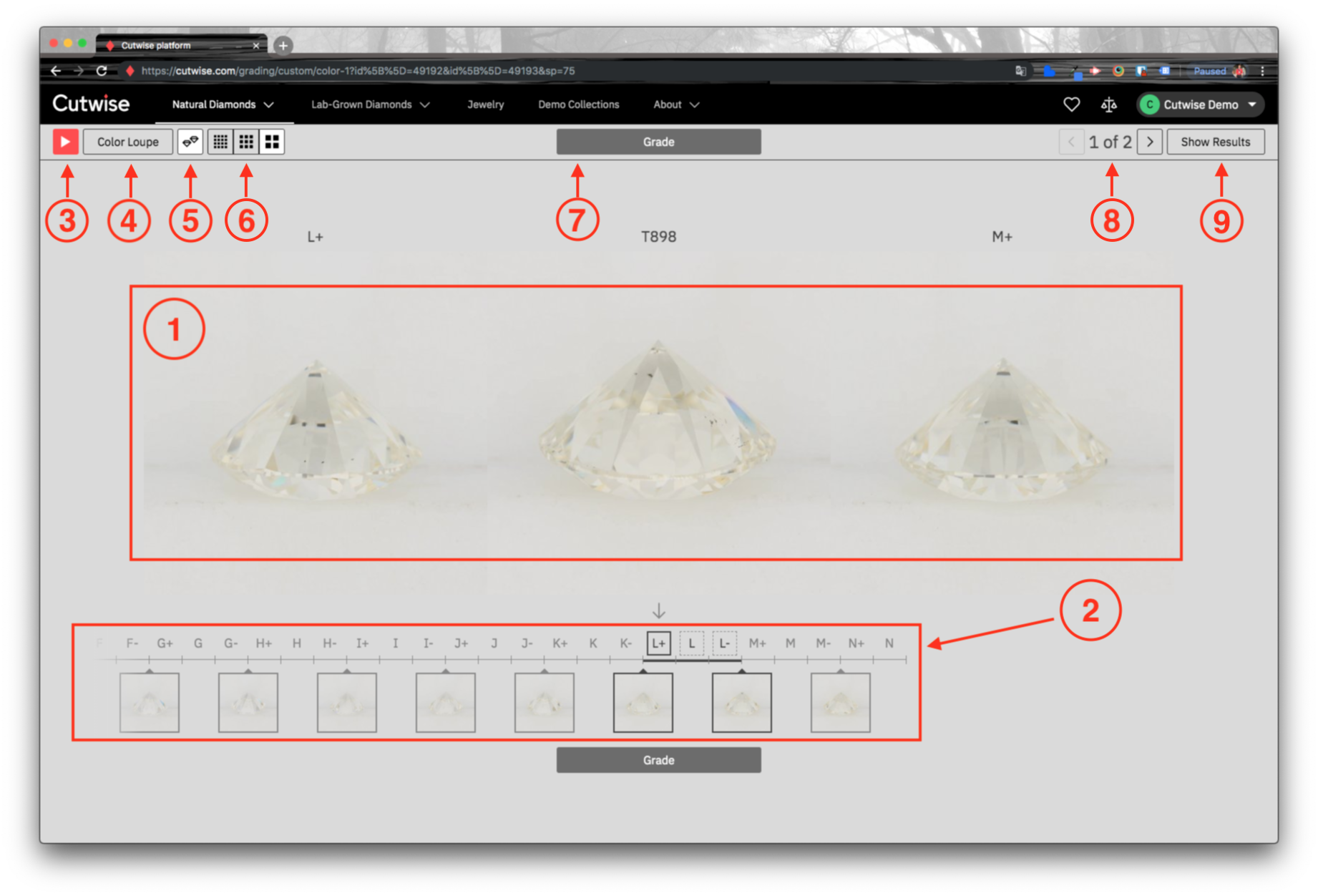
The numbers match the screenshot in step 3.
- Diamond to grade with the current references. The diamond to grade is in the center of the screen. Color references are to the left and to the right of it.
- Full set of color references. It shows all color references with their color grade. The
selected references are highlighted. To change the position of the diamond you grade:
- press the Left or Right arrow key to move it by one sub-grade;
- press Shift and the Left or Right arrow key to move it by one grade;
- click the sub-grade you need.
- Play / Pause. Plays or pauses the diamond video.
- Color Loupe. Makes the image more saturated, so that similar colors are easier to tell apart.
- Single Scale. Shows the diamonds at sizes that keep the proportions between them.
- Layout View. Selects the image size.
- Grade button. Applies the selected grade to the current diamond and moves to the next diamond. The shortcut is Enter.
- Next and Previous arrows. Move between the diamonds to grade. They show the total number of diamonds and the index of the current diamond.
- Show Results. Shows the grading results.