
Running Rough Color Grading
Start the first step of Rough Color Grading, follow it to the end, and know what to do when it fails.
Run the first step of Rough Color Grading to get the color range of four example diamonds from a rough diamond.
Before you start
- The rough diamond and your account meet the requirements in Before You Start.
- Check the price. The Prices block at the bottom of the Estimate Color menu lists what Rough Color Grading and plan estimation cost. About process and pricing opens a window with the full table. The same prices are in Rough Color Grading pricing.
Starting a run
- Open the rough diamond page.
- Click Estimate Color in the blue seller bar at the top of the page. The menu reads Estimate the color of diamonds planned from this rough.
-
Click Rough Color Grading. The menu offers it when both requirements are met.
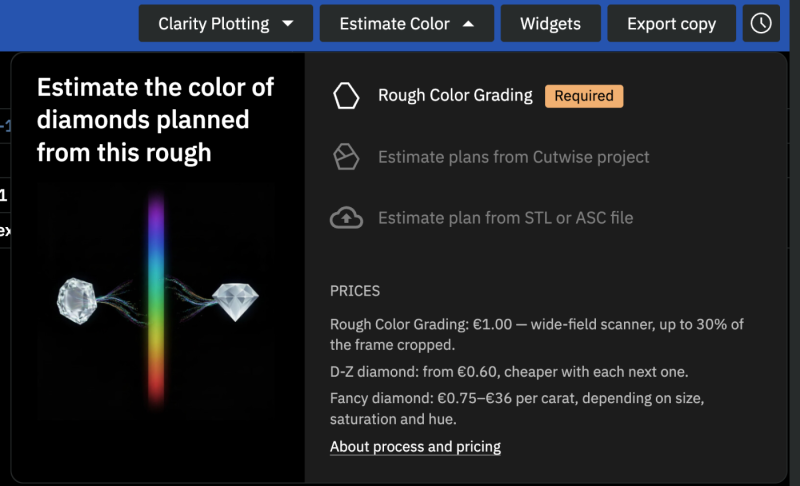
The menu closes and the run starts. The other two items, Estimate plans from Cutwise project and Estimate plan from STL or ASC file, stay disabled until this run is done.
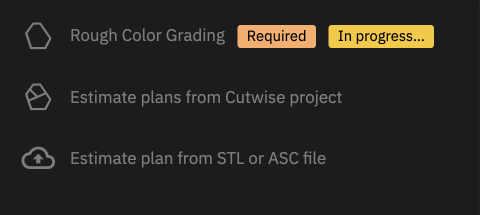
The Rough Color Grading item shows the state of the run:
| Item shows | Meaning |
|---|---|
| Required | the run has not been done yet, and plans wait for it |
| Required, In progress… | the run is going |
| Done | the estimate is ready; a rough diamond is estimated once |
| Failed | the run failed, and Cutwise does not charge for it |
| a grey line under the title | the run cannot start, and the line says why |
Following the run
A run is a task of type Rough Color Grading on the Tasks page. Its stages are listed under Reference.
A run takes from 15 minutes to one hour. Rough Color Grading renders have their own fixed queue priority. The credits on the account do not make them faster or slower.
When the run starts, a task row appears in the table under the seller bar. The bar shows the N Unfinished Tasks button, with one unfinished task for a single run. The table has the columns Task Type, Object, Status, Progress, Created At and Results:
- Status names the current stage, for example In Progress : Spectrum estimation.
- Progress shows how far the run has gone. It counts every planned render from the start, so it does not jump back when rendering begins.
- Results shows the expected time left, for example Expected in ~2 min.
When the run finishes, its row disappears and the result cards appear. The Estimate Color menu marks Rough Color Grading as Done and adds Verify Estimated Spectrum.

Check the result
The estimate is ready when at least two example diamonds are graded and the task has finished successfully. Then the Color estimation block appears on the rough diamond page. See Reading the Results.
If one example diamond fails, the run does not fail. The card of that diamond is missing. The run fails when none of the example renders succeed, or when an earlier stage fails.
Checking the spectrum
Every grade and number in the results rests on the reconstructed spectrum, so check the spectrum first.
-
Click Estimate Color in the blue seller bar.
-
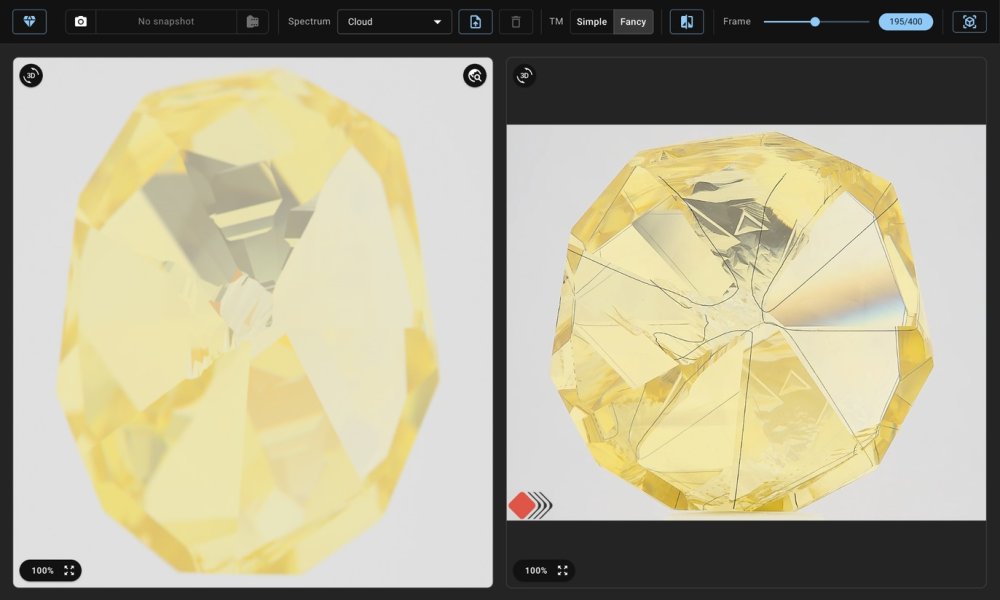
Choose Verify Estimated Spectrum. The page opens in a new tab.
-
Compare the two images. On the left, Cutwise renders the rough model through the estimated spectrum. On the right is the real ViBox 2.0 frame of the same rough diamond. Look at the hue, the strength of the color and how the color spreads.
If the render and the photo differ, do not trust the color estimate. The bar at the top of the page also exports every frame as PNG images.
When the run fails
- Cutwise does not charge for a failed run.
- The Rough Color Grading item shows Failed.
- You cannot start a run that is Done again from the menu. If the estimate looks wrong, ask Cutwise support.
Stopping a run
- Open Tasks and find the run.
- Open its Task commands menu and choose Terminate task.
Cutwise drops the example diamonds that were not graded by then, and does not charge for the run.
Next
Estimate the diamonds you plan to cut.
Reference
What a run estimates
A run estimates four example diamonds, not your plan. They are fixed reference designs, so every rough diamond is graded the same way:
| Example | Yield | Section on the rough diamond page |
|---|---|---|
| Round | 35% of the rough diamond | Primary Diamond Color Range Estimate |
| Radiant | 40% of the rough diamond | Primary Diamond Color Range Estimate |
| Round | 10% of the rough diamond | Secondary Diamonds Color Range Estimate |
| Radiant | 10% of the rough diamond | Secondary Diamonds Color Range Estimate |
The weight of each example is the rough weight times the yield. Cutwise takes the rough weight from the rough model. When there is no model, it takes the carat weight of the rough diamond.
The round and the radiant are the two ends of a range. Light travels a short path through a round, so the round shows the palest color among the typical designs. A radiant has a long ray path, so it shows the most saturated one. A diamond cut from this rough diamond to another design is usually between the two.
Run stages
The stages, in the order they run:
| Stage | What it does |
|---|---|
| Shadow model build | builds the rough model from the ViBox 2.0 shadow capture; skipped when a model exists |
| Model conversion | prepares the model for rendering |
| Registration | aligns the model with the ViBox 2.0 capture; skipped when it was done before, or when ViBox 2.0 built the model and the capture has the scanner transform |
| Spectrum estimation | reconstructs the absorption spectrum of the rough diamond |
| Rough render | renders the rough diamond itself through that spectrum |
| Example cuts render | renders the four example diamonds |
| DZ color grade | grades every example on the D–Z scale |
| Fancy color grade | grades every example on the fancy color scale |
| Fancy dispersion | measures how evenly the color spreads over each example (color uniformity) |