 Documentation
Import from a File
Add many diamonds to Cutwise at once from an XLSX or CSV spreadsheet, with certificate files in a ZIP archive.
After these steps, the diamonds from your spreadsheet are in your Cutwise stock.
Before you start
- Your Cutwise account has the permissions to add diamonds. See Back Office.
- Prepare a spreadsheet in XLSX (Microsoft Office) or CSV format. The columns and their values are under Reference below. Start from the example file.
- To add certificate files, put the spreadsheet and the certificate PDF files into one ZIP archive. See Archive format under Reference below.
Import the file
-
Open the user menu in the top right corner and click Import Products.
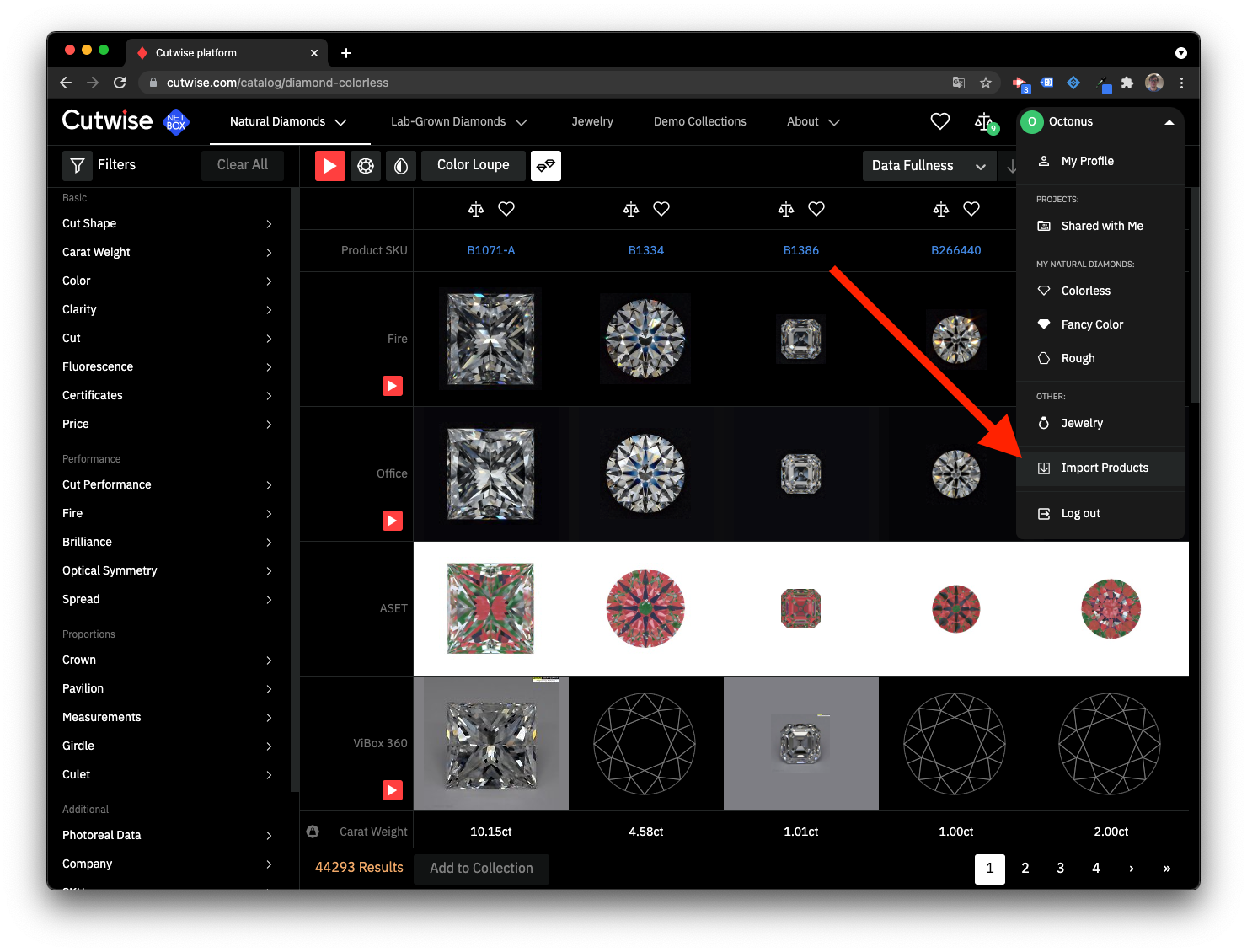
-
Upload your spreadsheet or ZIP archive.
-
Cutwise opens the Tasks page in a new tab. The import runs there as a task.
Warning
One error in any row fails the whole import. Cutwise then adds and changes no diamonds at all. The failed task lists the errors. Fix the file and upload it again.
Check the result
- The import task on the Tasks page has finished without errors.
- The diamonds from the file are in your stock.
The upload dialog says the products were imported as soon as Cutwise accepts the file. The task result is what counts.
Next
- Share Access: new diamonds are Restricted by default. Change the access to show them to other people.
Reference
How the import matches diamonds
- Cutwise looks for a diamond with the same Stock # and type in your company. If it finds one, the import updates that diamond with the values in the file. Otherwise the import adds a new diamond.
- To change the Stock # or the type of an existing diamond, add a CutwiseID column with its Cutwise ID. The import then finds the diamond by this ID.
- Each Stock # can appear only once in a file. A repeated Stock # fails the import.
- An empty cell leaves the field as it is. A row with an empty Stock # is skipped.
- A diamond keeps one certificate per laboratory. If it already has a certificate from a laboratory, the import does not add another one from the same laboratory.
- An account set up for lab-grown diamonds imports only lab-grown diamonds. Other accounts cannot import lab-grown diamonds. A row of the other kind fails the import.
Column headers
- Every column header must be one of the names in the table below. Case does not matter, but spaces and punctuation do.
- A column with any other header fails the import. Delete extra columns before you upload.
- Only Stock # is required.
- Put the Size column before the Price per Carat column. Cutwise computes the price from the carat weight, so a price without a weight to its left fails the import.
- Put a Lab column before each Certificate # column. A certificate number with no laboratory before it fails the import.
Spreadsheet fields
The second column lists every header that Cutwise accepts for the field. The third column lists the accepted values. Each value is followed by the short forms Cutwise also accepts. A value that is not in the list fails the import, unless the notes below the table say otherwise.
| Field | Accepted headers | Accepted values |
|---|---|---|
| Stock # * | Stock #, StoneID, SKU, ReferenceNum, ReferenceNumber, Stock, Stock Num, Stock_No, StockNo, StockNum, StockNumber, VenderStockNumber |
Your inventory stock number, up to 128 characters |
| Cutwise ID | CutwiseID |
The Cutwise ID of an existing diamond |
| Alternative SKU | AlternativeSKU, AlternativeStoneID |
A second stock number. It must not match the Stock # or Alternative SKU of another diamond in your company |
| Type | Type, Product Type, ProductType |
diamond; rough; jewelry; lab grown diamond; lab grown rough; gem |
| Share Access | Share Access, ShareAccess, Product Permission, Permission |
Restricted; Unlisted; Public |
| Shape | Shape, Shp |
Round = Round, Round Brilliant, B, BR, RB, RD, RBC, RND; Pear = Pear, P, PS, PSH, PB, PMB; Emerald = Emerald, E, EM, EC; Princess = Princess, PRN, PR, PRIN, PN, PC, MDSQB, SMB; Marquise = Marquise, MQB, M, MQ; Asscher = Asscher, A, CSS, CSSC, AC; Cushion = Cushion, CB, Cushion Brilliant, C, CUX, CU, CMB, CUSH, CUS RCRMB, CRC, CSC, CX, RCSB, SCMB, SCX; Heart = Heart, H, HS, HT, MHRC; Oval = Oval, O, OV, OMB; Radiant = Radiant, R, RAD, RA, RC, RDN, CRB, RCRB. Other shapes: the full shape name as Cutwise shows it, for example Square Emerald, Baguette, Tapered Baguette, Tapered Bullet, Briolette, Bullets, Calf, Cushion Modified, European Cut, Flanders, Half Moon, Hexagonal, Kite, Lozenge, Octagon, Old Miner, Pentagonal, Square Radiant, Rose, Shield, Square, Star, Trapezoid, Triangle, Trilliant, Other |
| Size | Size, Weight, Carat, CaratSize, CaratWeight, Ct, CtSize, CtWeight, Sz |
The carat weight, a number |
| Color | Color, Colr, Colour |
D, E, F, G, H, I, J, K, L, M, N, O, P, Q, R, S, T, U, V, W, X, Y, Z |
| Clarity | Clarity, Clar, Clearity, Purity |
FL, IF, VVS1, VVS2, VS1, VS2, SI1, SI2, SI3, I1, I2, I3 |
| Key To Symbols | Key To Symbols, KeyToSymbols, Key, InclusionDetails, Inclusion Details |
Text |
| Price per Carat | Price, PriceCarat, PriceCt, PricePerCarat, PricePerCt, Px, RapNet Price, AskingPrice, PerCarat, PerCt, Prc |
A number |
| Polish | Polish, Finish, Pol |
Ideal = Ideal, I, ID; Excellent = Excellent, X, EX; Very Good = Very Good, VG, V, V. Good, V.G; Good = Good, G, GD; Fair = Fair, F, FR; Poor = Poor, P, PR |
| Symmetry | Symmetry, Sym, Symetry, Sym-metry, Symm |
Ideal = Ideal, I, ID; Excellent = Excellent, X, EX; Very Good = Very Good, VG, V, V. Good, V.G; Good = Good, G, GD; Fair = Fair, F, FR; Poor = Poor, P, PR |
| Cut Grade | Cut Grade, Cut, CutGrade |
Ideal = Ideal, I, ID; Excellent = Excellent, X, EX; Very Good = Very Good, VG, V, V. Good, V.G; Good = Good, G, GD; Fair = Fair, F, FR; Poor = Poor, P, PR |
| Fluorescence Intensity | Flr, FlrIntensity, Fluo Intensity, Fluor, Fluor Intensity, Fluorescence, Fluorescence Intensity, FluorescenceIntensity, FluorIntensity |
Very Strong = Very Strong, VS, VSTG, VST, FL4; Strong = Strong, S, STG, ST, FL3; Medium = Medium, M, MED, FL2; Faint = Faint, FNT, Negligible, FA, FL1; None = None, NON, No, NIL, FL0 |
| Fluorescence Color | Fluorescence Color, FlrColor, Fluo Color, Fluor Color, FluorColor, FluorescenceColor |
Blue = B, Blue, BL; White = W, White, WH; Yellow = Y, Yellow, YL; Orange = O, Orange, OR; Red = R, Red; Green = G, Green, BG; None = N, None, NIL, NON |
| Laboratory | Lab, Laboratory |
GIA = GIA, G.I.A, G; AGS = AGS, AGSL, AGS0, A; HRD = HRD, H; IGI = IGI, I; IIDGR = IIDGR; GCAL = GCAL |
| Certificate # | Certificate #, Cert Num, CertID, CertificateID, CertificateNum, CertificateNumber, CertNo, CertNum, CmPub |
The certificate number from the grading laboratory |
| Girdle Finish | Girdle Finish, Girdle Condition, GirdleFinish |
Polished = Polished, P; Faceted = Faceted, F; Bruted = Bruted, B |
| Girdle Thin | Girdle Thin, Girdle, GirdleMin, GirdleThin |
Extremely Thin = Extremely Thin, XTN, XTHN, EXTN, ETN, EN, XN; Very Thin = Very Thin, VTN, VTHN, VTHIN, VN; Thin = Thin, TN, THN; Medium = Medium, M, MED, MD; Slightly Thick = Slightly Thick, STK, SLTK, SLTHK; Thick = Thick, TK, THK, THIK, THIC; Very Thick = Very Thick, VTK, VTHCK, VTHK, VTHICK; Extremely Thick = Extremely Thick, XTK, EXTHICK, EXTHK, XTHK, XTHICK, XTHIK, ETK, EK, XK |
| Girdle Thick | Girdle Thick, GirdleMax, GirdleThick |
Same values as Girdle Thin |
| Culet Size | Culet Size, Culet, CuletSize, Culet_size, CuletGrade, Cullet, CulletGrade |
None = N, None; Very Small = VS, Very Small; Small = S, Small; Medium = M, Medium; Slightly Large = SL, Slightly Large; Large = L, Large; Very Large = VL, Very Large; Extremely Large = EL, Extremely Large |
| Fancy Color | Fancy Color, FancyColor, FancyColorMainBody, FC-Main Body, FCMainBody |
Black = Black, BK; Blue = Blue, B; Brown = Brown, BN, Br; Gray = Gray, Grey, GY, Gr; Green = Green, G; Orange = Orange, O; Pink = Pink, Pk, P; Purple = Purple, PL; Red = Red, R; Yellow = Yellow, Y; Violet = Violet, V; White = White, WH, W. Two-color combinations are listed below the table |
| Fancy Color Intensity | Fancy Color Intensity, FancyColorIntensity, FCIntensity, FC-Intensity |
Faint = Faint, F; Very Light = Very Light, VL; Light = Light, L; Fancy Light = Fancy Light, FCL, FL; Fancy = Fancy, FC; Fancy Dark = Fancy Dark, FCD; Fancy Intense = Fancy Intense, I; Fancy Vivid = Fancy Vivid, FV; Fancy Deep = Fancy Deep, D, DP, Deep |
| Fancy Color Overtone | Fancy Color Overtone, FancyColorOvertone, FancyColorOvertones, FCOvertone |
Brownish; Brown; Grayish; Gray; Greenish; Pinkish; Grayish Brownish; Purplish; Yellowish; Orangy; Bluish; Reddish |
| Black Inclusion | Black Inclusion, Black Inclusions |
None = Black Inclusions None; BT0 = Black Table Meaningless; BT1 = Black Table Small; BT2 = Black Table Medium; BT3 = Black Table Large; BC0 = Black Crown Meaningless; BC1 = Black Crown Small; BC2 = Black Crown Medium; BC3 = Black Crown Large |
| White Inclusions | White Inclusion, White Inclusions |
None = White Inclusions None; WT0 = White Table Meaningless; WT1 = White Table Small; WT2 = White Table Medium; WT3 = White Table Large; WC0 = White Crown Meaningless; WC1 = White Crown Small; WC2 = White Crown Medium; WC3 = White Crown Large |
| Open Inclusion | Open Inclusion, Open Inclusions |
None = Open Inclusions None; OT1 = Open Table Small; OT2 = Open Table Medium; OT3 = Open Table Large; OC1 = Open Crown Small; OC2 = Open Crown Medium; OC3 = Open Crown Large; OP1 = Open Pavilion Small; OP2 = Open Pavilion Medium; OP3 = Open Pavilion Large; OG1 = Open Girdle Small; OG2 = Open Girdle Medium; OG3 = Open Girdle |
| Treatment | Treatment, Enhance, Enhancement, Enhancements, Treatments |
LD = Laser Drilled; IRR = Irradiated; CE = Clarity Enhanced, Fracture Filled; COL = Color Enhanced; HPHT = High pressure high temperature; OT = Other (enter any other type of treatment); N = None, the diamond is untreated |
| Milky | Milky, Cloudy |
None; Light (M1); Medium (M2); Heavy (M3) |
Notes on the fields:
- Type: the default type is diamond. Case does not matter.
- Share Access: the default is Restricted. Enter the value exactly as shown, with a capital letter. Any other value, including
public, sets Restricted and does not fail the import. New diamonds also get the Hide All Design Data Cut Data status by default. - Shape: case does not matter. A name that Cutwise does not know fails the import.
- Color: for fancy colors, use the Fancy Color column.
- Clarity: for a fancy color diamond with no clarity grade, leave the cell empty.
- Girdle Thin: you can also enter a range such as
Thin-Thick. The import then sets both Girdle Thin and Girdle Thick. - Milky: enter the value exactly as shown, for example
Light (M1). Any other value clears the field and does not fail the import. - Black Inclusion, White Inclusions, Open Inclusion and Treatment: enter the short codes in bold. To enter several values, separate them with a semicolon (
;).
Two-color fancy diamonds
Fancy Color accepts only the combinations below. Separate the two parts with a space or a hyphen, for example Greenish Yellow, Blue-Green or B-G. Each part can also be a short form from the table above. Any other combination fails the import.
- Yellow: Green Yellow, Greenish Yellow, Orangy Yellow, Orange Yellow
- Brown: Yellow Brown, Yellowish Brown, Orangy Brown, Orange Brown, Pinkish Brown, Pink Brown
- Orange: Yellow Orange, Yellowish Orange, Pinkish Orange
- Pink: Brown Pink, Orangy Pink, Purplish Pink, Purple Pink
- Purple: Brown Purple, Pink Purple, Pinkish Purple, Gray Purple
- Violet: Bluish Violet, Gray Violet
- Blue: Violetish Blue, Greenish Blue, Green Blue, Gray Blue
- Green: Blue Green, Bluish Green, Yellowish Green, Yellow Green, Gray Green
- Gray: Yellow Gray, Green Gray, Blue Gray, Violet Gray, Purple Gray, Greenish Gray
Several certificates for one diamond
The import accepts several certificates for one diamond. Start each next certificate with its own Lab column:
| Stock # | Lab | CertNo | Lab | CertNo |
|---|---|---|---|---|
| S1 | GIA | 123456789 | IIDGR | 12345678 |
| S2 | GIA | 987654321 |
Archive format
- Compress the archive as ZIP, with the
.zipextension. - The archive contains exactly one spreadsheet in CSV or XLSX format.
- The archive can also contain certificate files in PDF format. Name each certificate file after the certificate number in the spreadsheet, for example
123456789.pdf. - Put all files at the top level of the archive. The import ignores files inside folders.
- Use lowercase extensions:
.csv,.xlsx,.pdf. The import ignores files named.PDFor.XLSX. - The archive can be up to 500 MB.