
Estimating Planned Diamonds
Estimate the color of the diamonds you actually plan to cut, from an HP Carbon project or from STL and ASC files.
Estimate the color of the diamonds you plan to cut from a rough diamond. The example diamonds of the first step show the color range of the rough diamond. Plan estimation tells you what color these planned diamonds will be. It reuses the spectrum from the first step, so it only renders and grades. Cutwise charges it per diamond.
Before you start
- Rough Color Grading is Done for this rough diamond. Until then, both plan items are disabled.
- For Estimate plans from Cutwise project, the rough diamond also has a solution left to estimate. The solution needs a cut shape, a 3D model and a weight above zero that does not exceed the weight of the rough, and a solution that is already estimated does not count. Without one, that item stays disabled even after the run is Done.
- The account has a positive balance. Cutwise checks it before it accepts a plan.
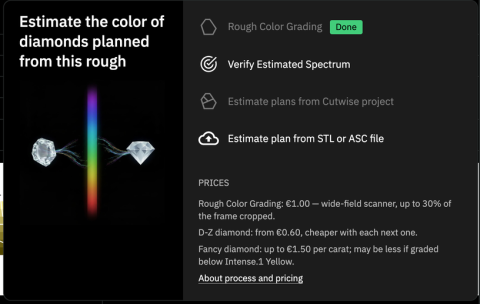
The same menu now also shows Verify Estimated Spectrum. See Running Rough Color Grading.
From a Cutwise project
Use this when an HP Carbon project for the rough diamond is uploaded to Cutwise. The solutions of the project are the candidates.
- Click Estimate Color → Estimate plans from Cutwise project.
- In Select diamonds to estimate their color, tick the diamonds to estimate.
-
Check the price line at the bottom, then click Estimate Color of N Diamonds.
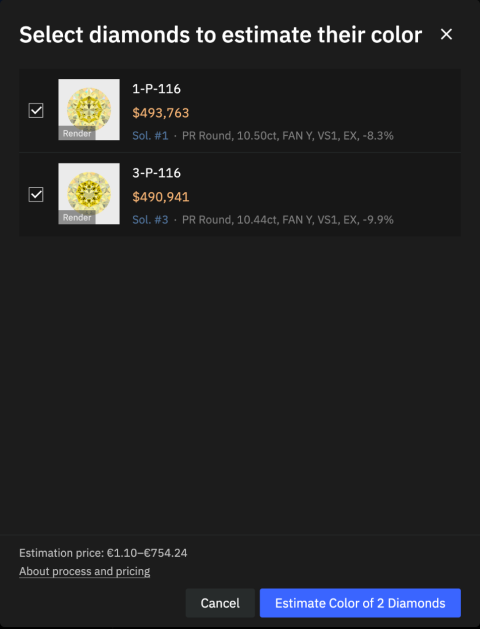
A message confirms the start: Color estimation of the selected solutions has started. Track it in Tasks.
The list holds every diamond of the project planned from this rough diamond, and every diamond linked to this rough diamond as its source. Each row shows a preview, the SKU, the price, a link to the solution, and its shape and weight.
| Row shows | Meaning | Selectable |
|---|---|---|
| nothing | the diamond can be estimated | yes |
| In progress… | its estimation is running | no |
| Done | it has been estimated | no |
| No model, shape or mass | the solution has no 3D model, cut shape or weight | no |
While any diamond is in progress, the list refreshes every few seconds. You can come back to the list at any time to add more diamonds. A diamond whose estimation failed becomes selectable again.
The item is disabled when the project has nothing left to estimate. An empty list reads The associated project has no diamonds planned from this rough. This means the rough diamond is not linked to a project, or the project has no solutions for it.
From an STL or ASC file
Use this for a plan made outside HP Carbon, or to check a single design.
- Click Estimate Color → Estimate plan from STL or ASC file.
- Pick one model file of the planned polished diamond.
While the file uploads, the item reads Uploading…. Then a message confirms that the estimation has started. To estimate the next diamond, upload another file the same way.
Cutwise turns each file into a new diamond of the company that owns the rough diamond. The SKU is
<rough SKU>-sol-<n>. Cutwise keeps the file name and shows it on the diamond card on the rough
diamond page and in the task details.
File requirements
- One file per upload,
.stlor.asc, no larger than 100 MB. - The model describes a polished diamond with a known cut shape and a weight.
- The weight is not larger than the weight of the rough diamond, and not larger than 1000 ct.
A model with a weight of 1000 ct or more almost always uses the wrong units. Export it in millimeters.
Cutwise refuses a file that breaks these rules at once, and starts nothing. Cutwise reads the weight and the cut shape only after the upload. So a model without them, or a model heavier than the rough diamond, fails as a task. The task error says why.
Check the result
Each estimation, from a project or from a file, is a task of type Rough Solution Color Grading. The task lists (My Tasks and the task table under the blue seller bar on the rough diamond page) show it as Rough Color Grading, the same name as the first step. The table has the columns Task Type, Object, Status, Progress, Created At and Results, and the bar shows an N Unfinished Tasks button. Expand the row to tell them apart. The task details name the source:
| Source | Started from |
|---|---|
| Cutwise Project | Estimate plans from Cutwise project |
| External Model | Estimate plan from STL or ASC file |
The object details list the estimated solutions: Sol. #N for a project, or the file name for an
upload.
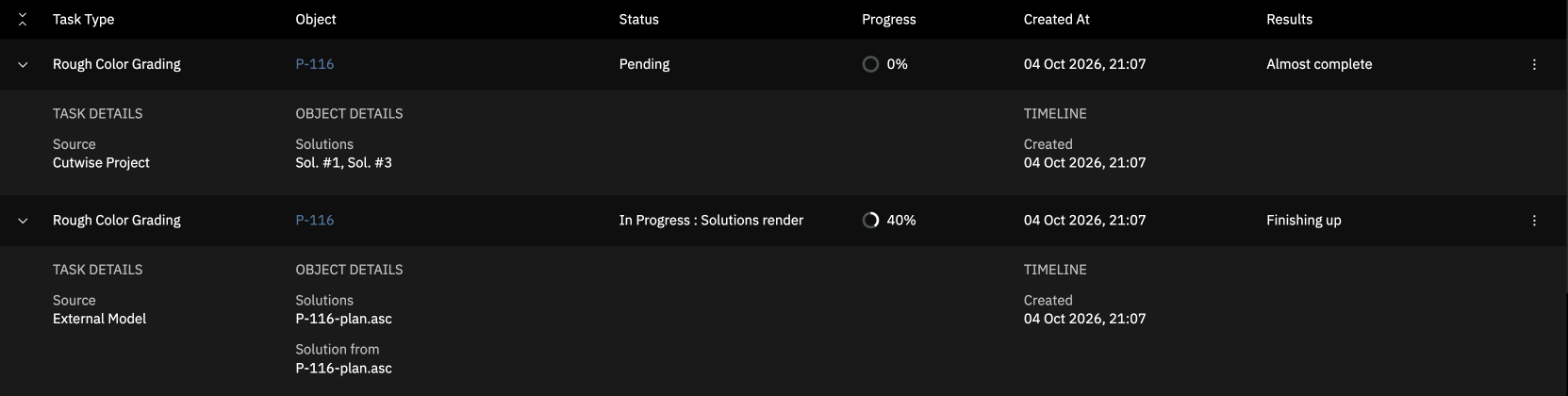
When the task is done, the diamond appears in the Planned Diamonds with Estimated Color section of the rough diamond page.
Next
Reference
Task stages
| Stage | What it does |
|---|---|
| Model import | reads the uploaded file; files only |
| Model processing | builds the model and report of the diamond; files only |
| Solutions render | renders every selected diamond through the spectrum of the rough diamond |
| DZ color grade | grades each diamond on the D–Z scale |
| Fancy color grade | grades each diamond on the fancy color scale |
Plan estimation does not run the Fancy dispersion stage, so it does not measure color uniformity. The Uniformity of a planned diamond comes from its FCRF grade. See FCRF Price Estimate.
What the estimate changes on the diamond
A planned diamond is a real diamond in Cutwise, so Cutwise writes the estimate back to it:
- The fancy color flag is set when the verdict is Confident Fancy Color, and cleared otherwise.
- Its renders whose color mode no longer matches the verdict are queued again. A fancy diamond gets fancy-mode renders. A D–Z diamond gets D–Z renders.
- Its grades are written to its own media. The D–Z grade goes to its ViBox 2.0 D–Z video. The fancy grade goes to its Fancy Color Estimation photo.
- For an uploaded model, the renders of the estimation become the media of the diamond.
The diamond page then shows the same grades as its card on the rough diamond page.